Introduction
In this lab we will be exploring the available fields in task
Pre-requisites
- Complete the Getting Started lesson
Lab Objective
- Use the Add Query feature of Docs to produce a value of report
- Observer the data values available along with their definitions
- Review the data which is returned
Check your Authorization
- If it has been over 12 hours since you completed the last lesson
- In the Tools menu, click Authorization
- If you are asked to log in, follow the directions.
- If the "Copy this text into your Global Environment Variable" modal opens you have already logged in.
- Copy the entire Global Environment Variable text and paste it in the Global Environment Variable box
Add Query from Docs
Click + Add new in the top bar of Altair

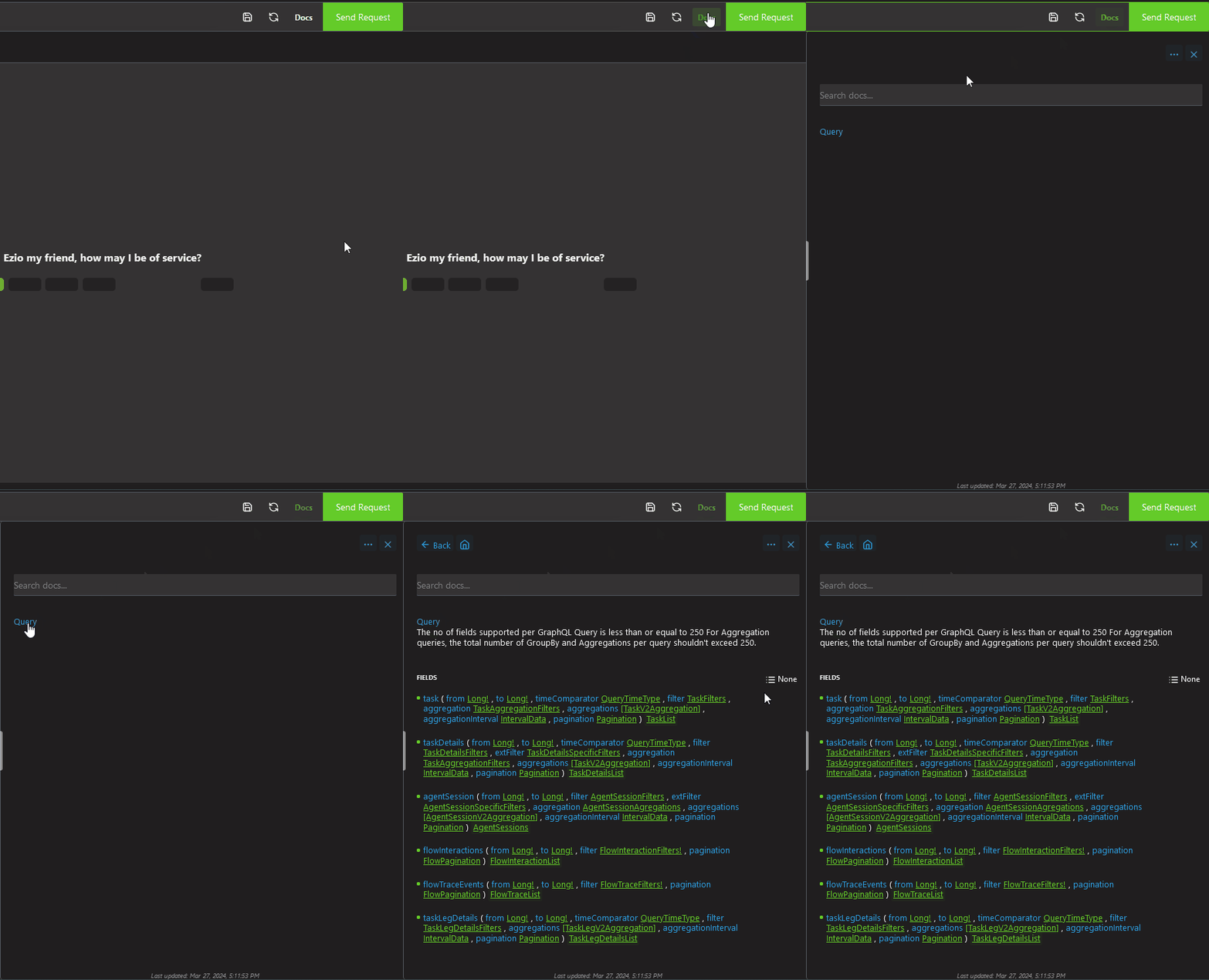
- Open the Docs panel
- Click Query
Next to task, click ADD QUERY
- In the query window use the keyboard shortcut
ctrl + /to comment out the following fields in the arguments section:- filter
- aggregation
- aggregations
- aggregationInterval
- pagination
- You can delete all of the lines in the has section (line 84-150) as they are not needed
-
Comment out or delete the following fields from the fields section:
- integerGlobalVariables
- stringGlobalVariables
- longGlobalVariables
- doubleGlobalVariables
- booleanGlobalVariables
- intervalStartTime
- aggregation
-
Hover over owner in the fields list of the query pane

- In the Docs pane, click on task to expand the documentation
- Scroll down to Fields and click on tasks
- Note that this lists all of the available fields in the Task object
- Scroll down to owner
- Note the type of data is AgentInfo
- Click on owner
- You can now see the AgentInfo fields
- Next to owner in the query pane, type open curly braces (
{), press enter, and typeid- Note that you should have gotten the option to auto complete by pressing enter
- Fill in the rest of the field names:
- name
- signInId
- sessionId
- phoneNumber
- channelId
- Work your way down the rest of the fields which have lines underneath them and hover your mouse over the fields
- If the field is deprecated, delete it or comment it out
- If the field is not deprecated, place your cursor after the field lane and use the keyboard shortcut
ctrl + shift + enter - While in the query pane and use the keyboard shortcut
ctrl + fto bring up the find and replace dialog box - In the find box paste
(sort: asc), put nothing in the replace box, and click replace all. - Using the time widget, set the from and to fields for 1 day (this query could bring back a lot of data)
- Execute the query by clicking the send request button or the keyboard shortcut
ctrl + enter
Pick a single task and answer the following questions:
What Channel type is this task from?
Hint: Check field channelTypeWhat is the last queue name?
Hint: Check field lastQueue > nameWas this a callback?
Hint: Check field isCallbackIs this an active task?
Hint: Check field isActiveWas this task abandoned?
Hint: Check field terminationType