Getting to know your environment
Know before you start
-
We will be using a shared lab tenant for simulations, meaning all attendees will work within the same Webex Contact Center environment. To avoid conflicts, ensure that any entities you configure are tagged with the Attendee ID assigned to you.
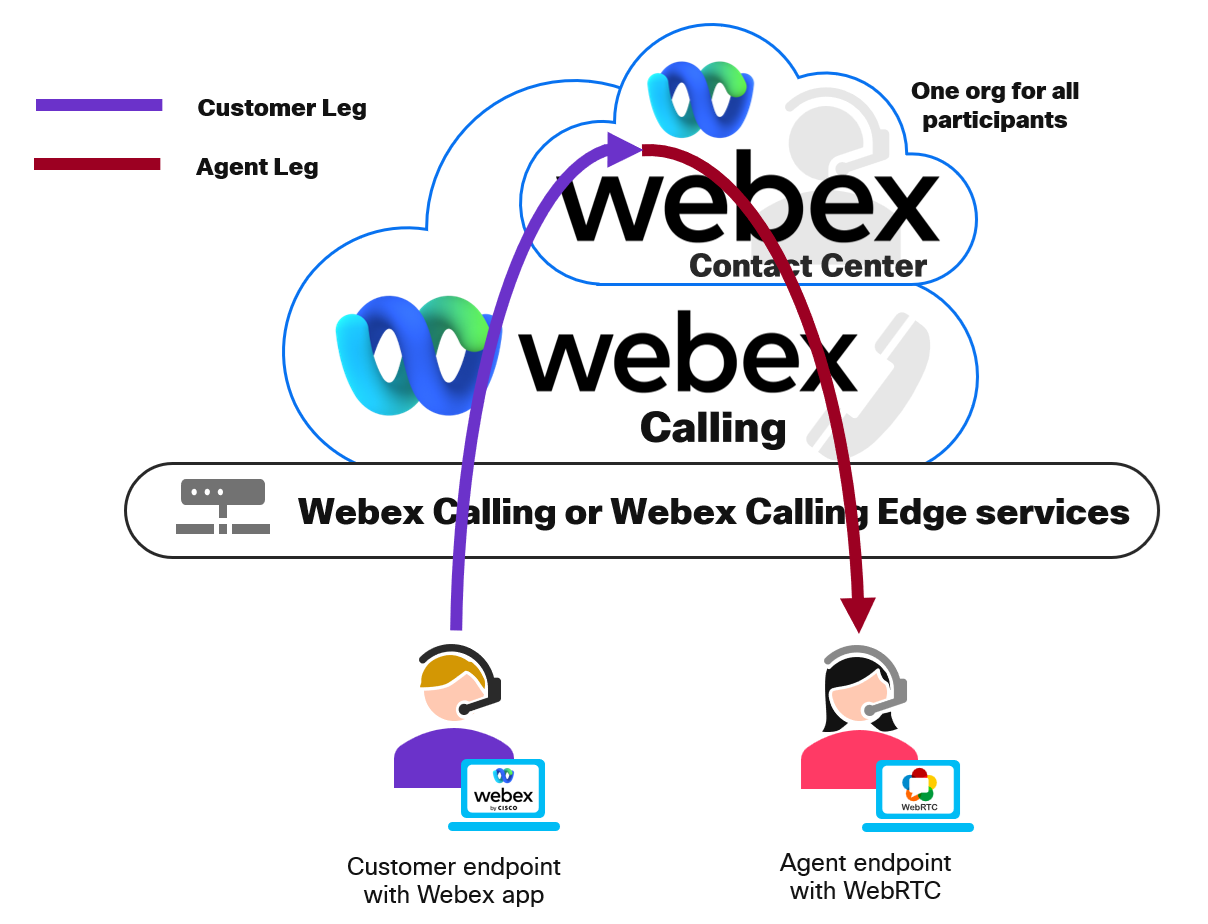
WxCC Schema
-
The majority of the configuration in Control Hub is already set up, allowing you to focus primarily on Flow Design. Of course, there may still be some elements to adjust, but these should be minimal, letting you concentrate on building and refining the flow logic rather than spending time on initial setup.
- The Agents have been configured for you. You will be performing the rest of the configurations to route voice calls
- You will use the Administrator account to log in to Agent Desktop and accept calls. With this approach, there is no need to create multiple browser (Chrome) profiles.
- All your configurations should contain your attendee ID so the lab users don't step over each other's configurations
- Each of you has been provided with the phone number to dial (Entry Point DN), 1 Supervisor and 1 Admin account.
- We are going to use built-in Cisco Text to Speech for playing all messages in the lab.
- Please ask for help when you need it. Just raise your hand and call the proctor.
Predefined configuration
Entry Point/Channels: Your_Attendee_ID_Channel
Queue: Your_Attendee_ID_Queue
Skill-Based Queue: Your_Attendee_ID_SBR_Queue
Agent: wxcclabs+admin_IDYour_Attendee_ID@gmail.com
Supervisor: wxcclabs+supvr_IDYour_Attendee_ID@gmail.com
Business Hours: Your_Attendee_ID_Bussiness_Hours
Assigned Inbound Channel Number: Provided by Lab Instructor
More pre-configured entities will be mentioned during the lab missions if they have any.
Testing
Agent Desktop
Use https://desktop.wxcc-us1.cisco.com/ to login your agent. In addition, Desktop profile was configured in a way where you don't need to select a Telephony line. By default only Desktop Audio (WebRTC) has been enabled.
Calling to Contact Center
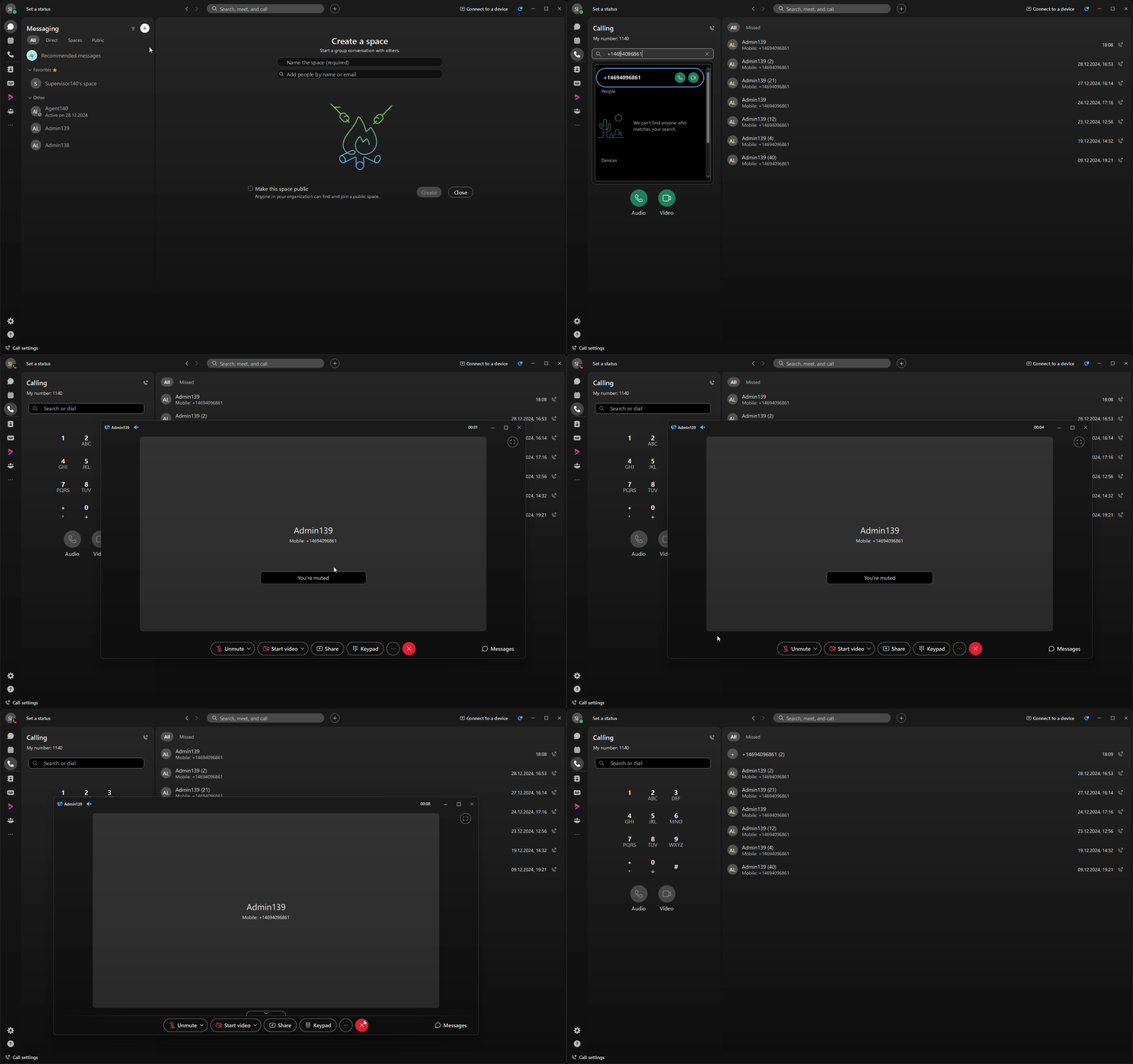
All calls to Webex Contact center should be done from Webex App. Use Supervisor account provided to you to login to Webex App. To make a test just open Webex App and dial the provided Support Number assigned to you.