Mission 4: Agent Welbeing
🚨 Important Lab Dependency
This mission requires configuration created in the following missions:
If this mission was not completed, some steps in current mission will not function correctly.
Feature Description
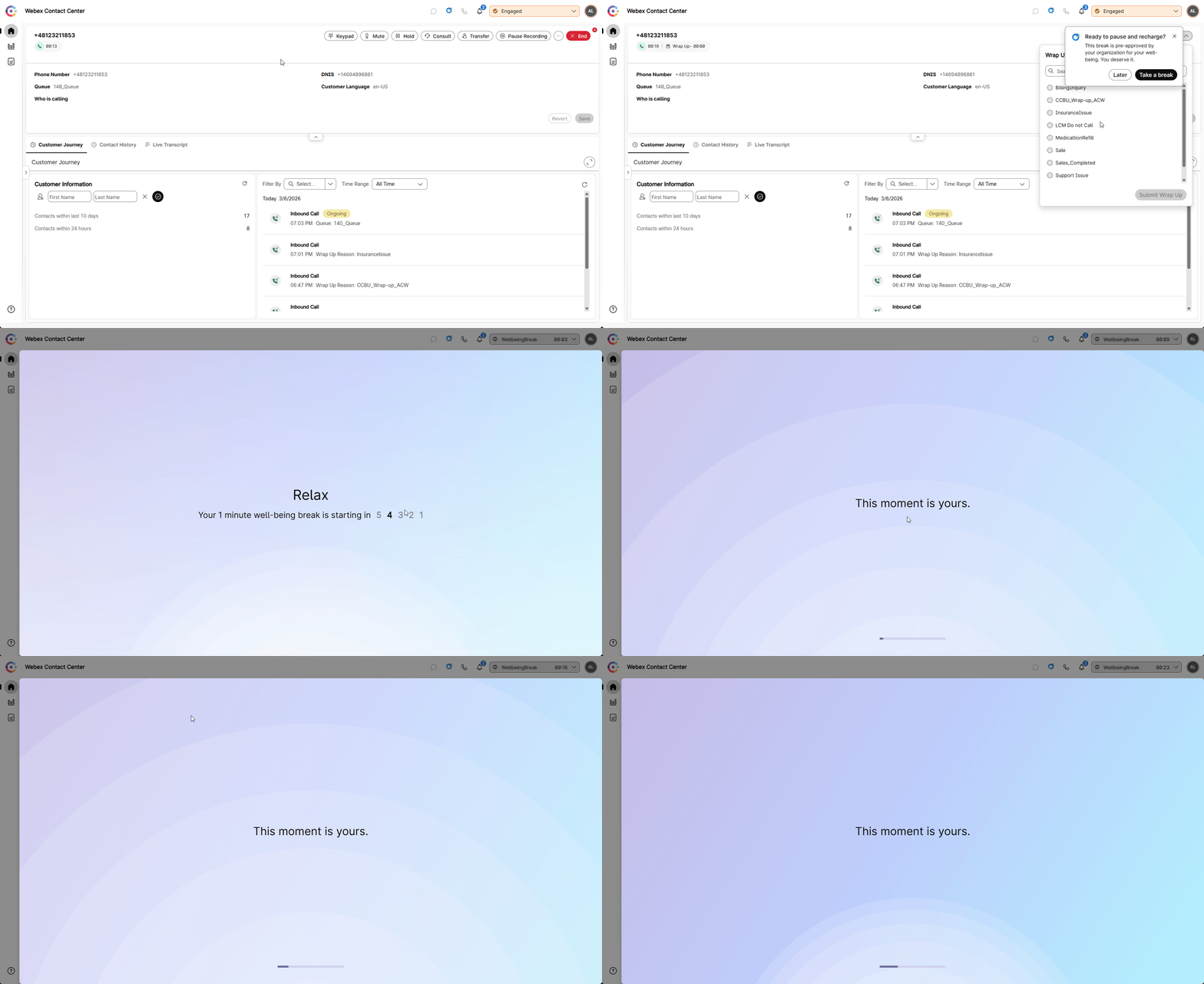
Agent Wellbeing (Burnout Detection) feature in Webex Contact Center uses Cisco’s proprietary AI algorithms to analyze specific call metrics and transcripts to identify signs of stress and burnout in agents. The system continuously monitors shifts in agent performance, schedule, and other operational data to calculate a unique burnout index for each agent, tailored individually with separate thresholds. When an agent’s burnout level crosses a defined threshold, the AI Assistant proactively offers a 1-minute wellness break between call assignments to help the agent reset and reduce stress.
Mission Details
Your mission is to:
- Manually trigger Agent Wellbieng scenario for your agent
[READ ONLY] Verify feature configuration
-
Switch to Control Hub and navigate to AI Assistant under Desktop Experience section. Make sure Agent Wellbeing feature is turned on and set to All Agents.
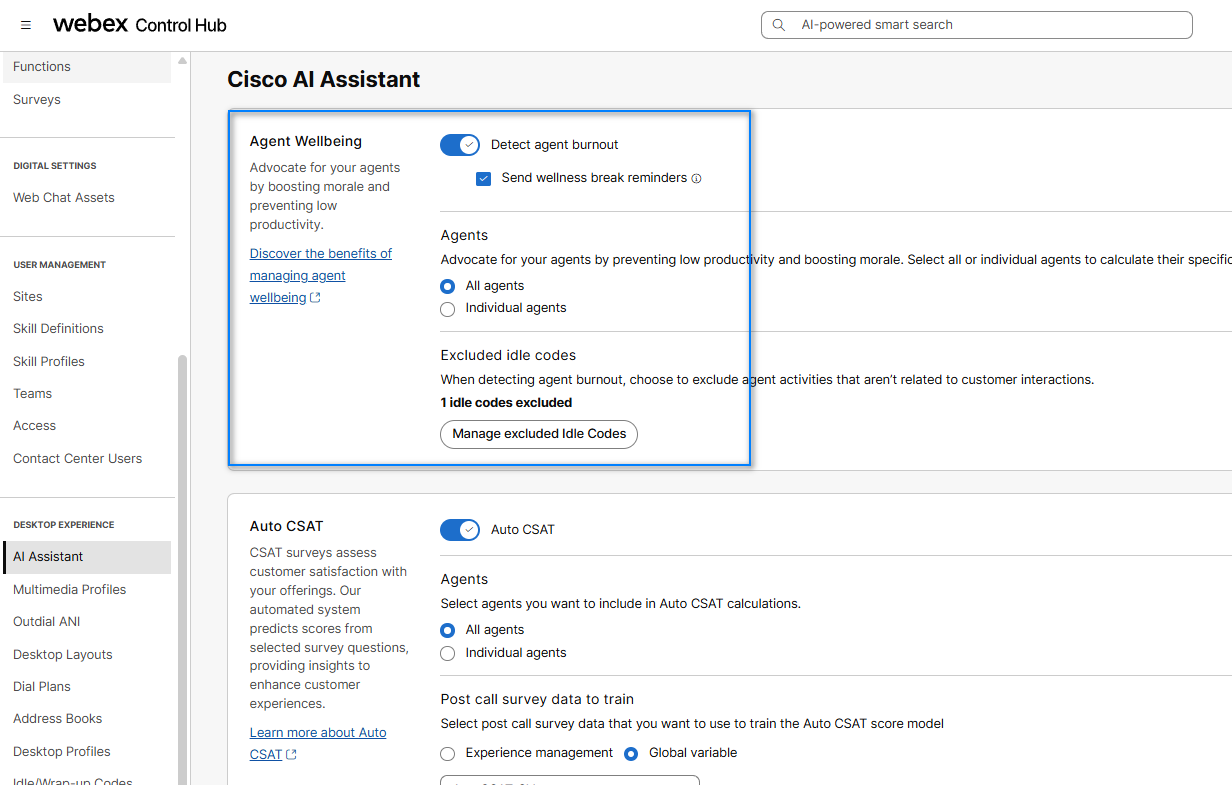
-
The Agent needs to logged in to the Team that is configured with Desktop Layout that has Agent Assistance features configured (Note: Default desktop layout already incudes the AI Agent Assistance widget).
Agents Team: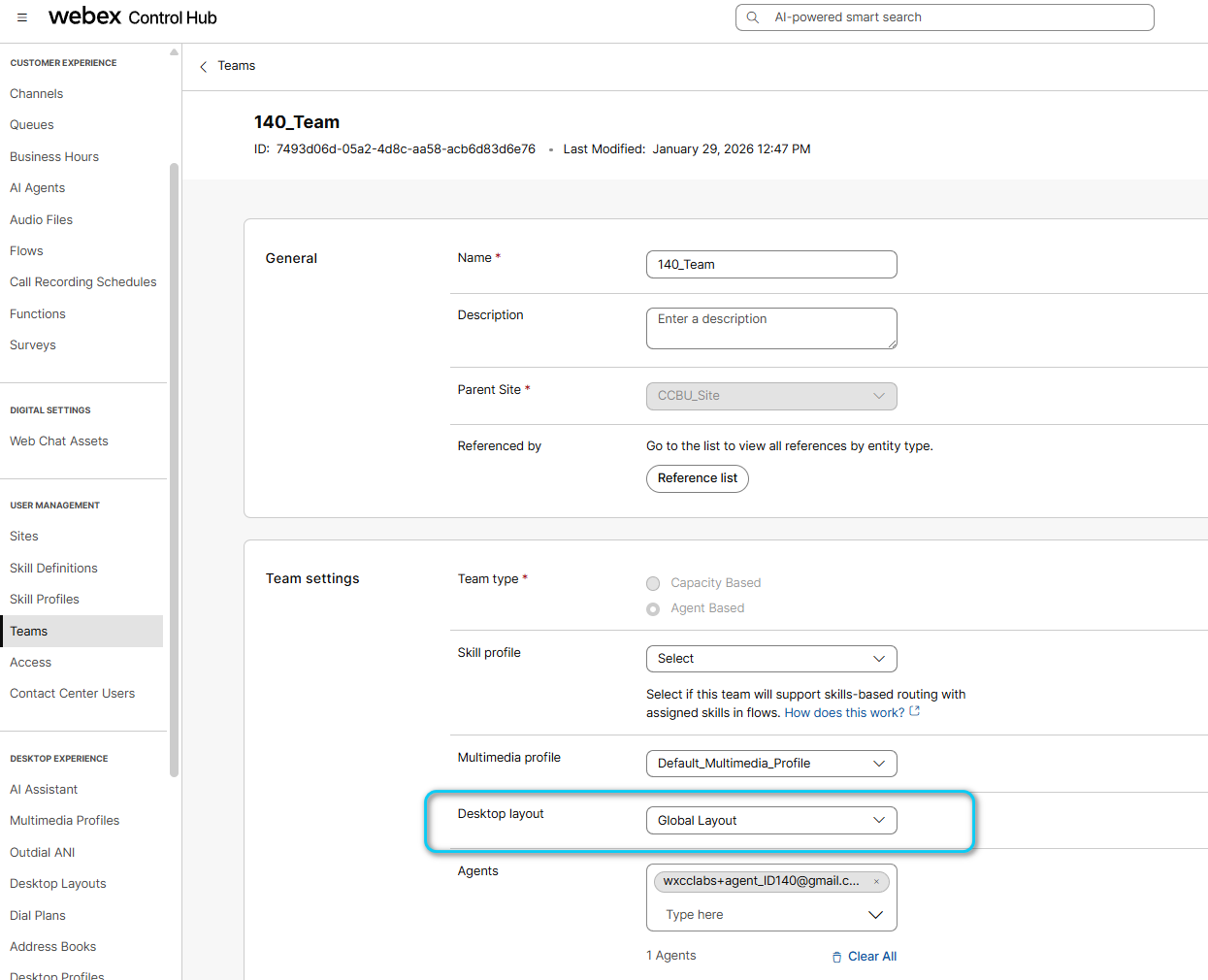
Desktop Layout: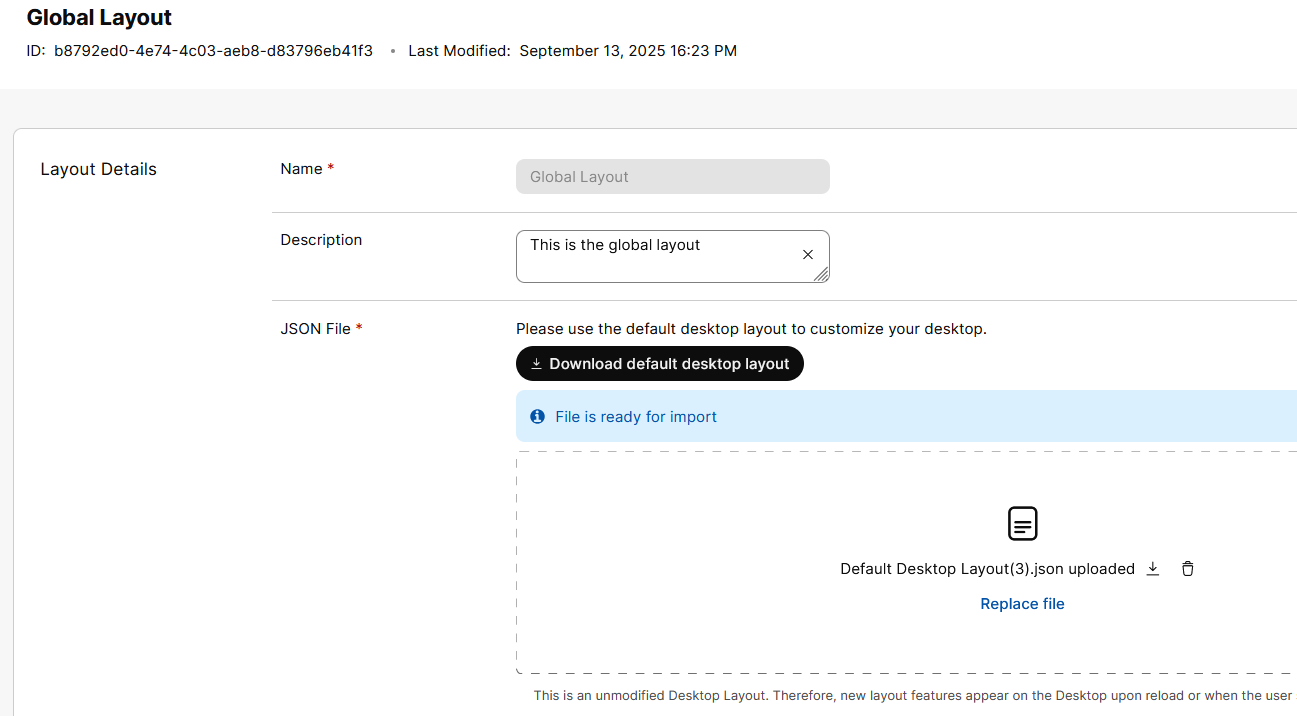
Desktop Layout file: Make sure ai-assistant is configured under the advancedHeader.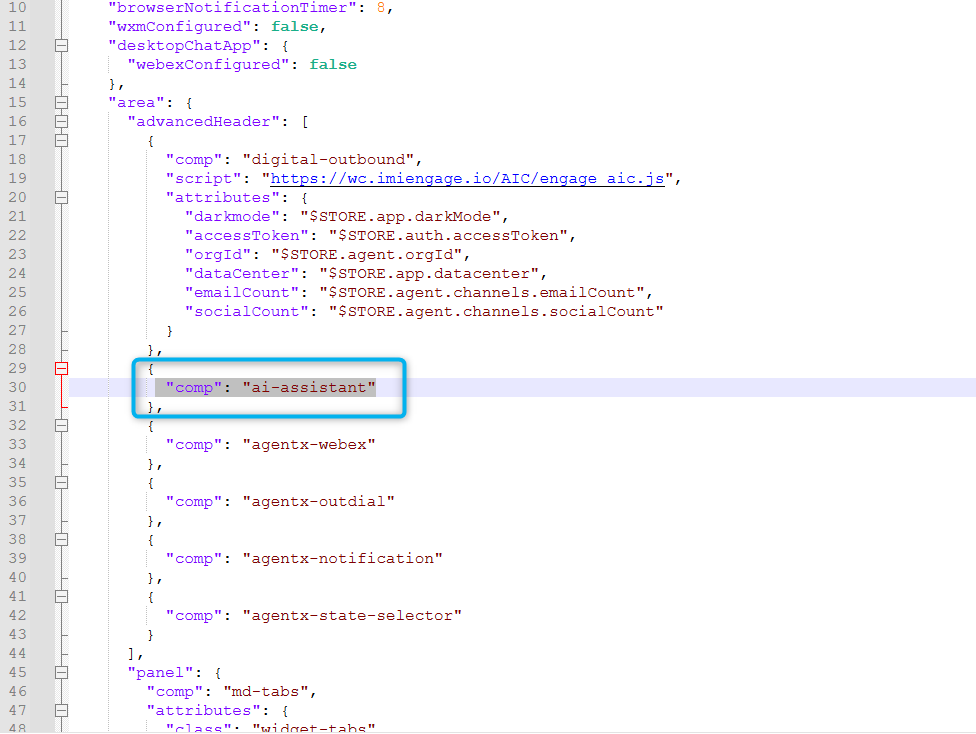
You can download a preconfigured desktop layout here.
Desktop Layout
Build
-
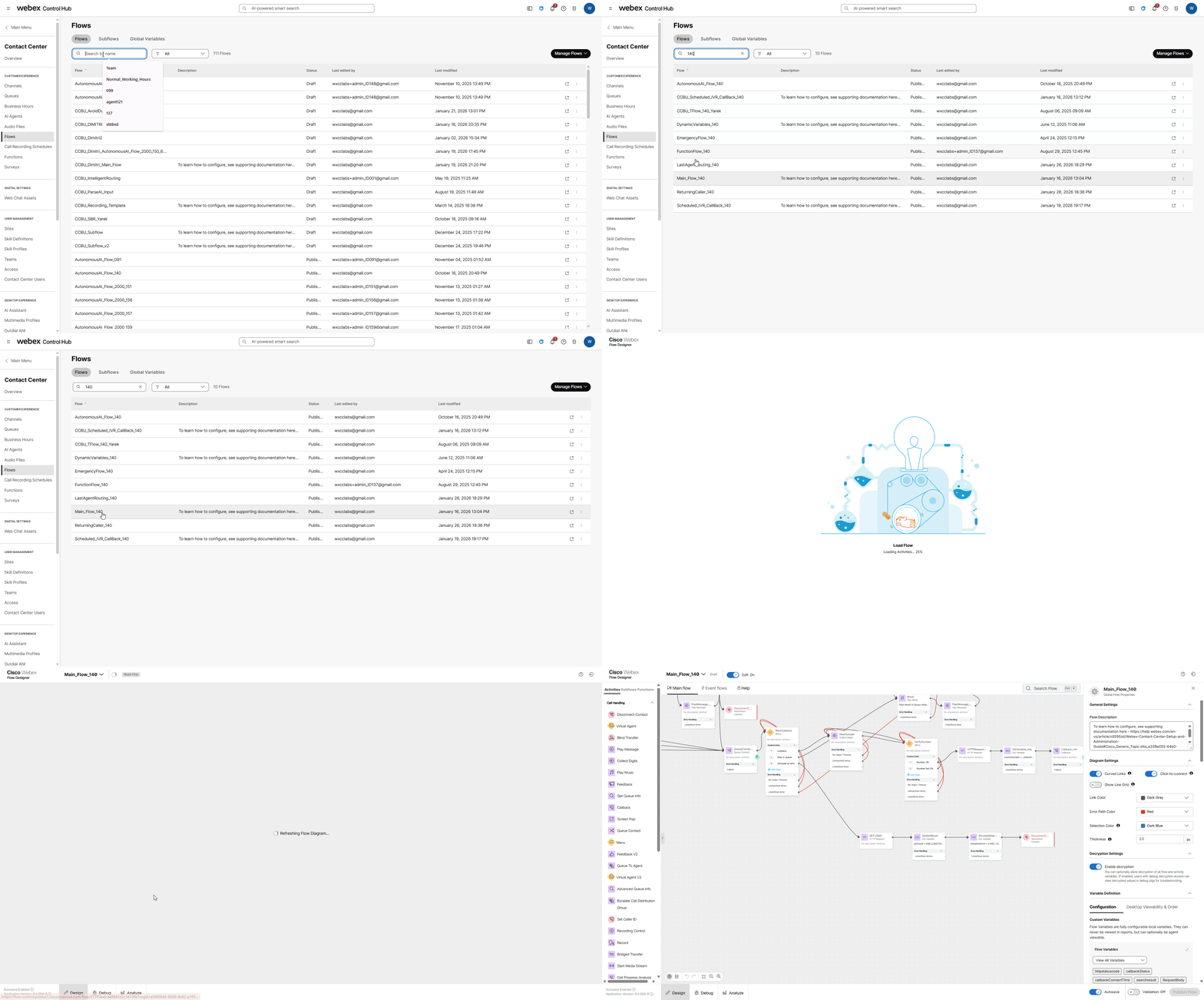
Open up your voice flow Main_Flow_Your_Attendee_ID and click on Edit.
-
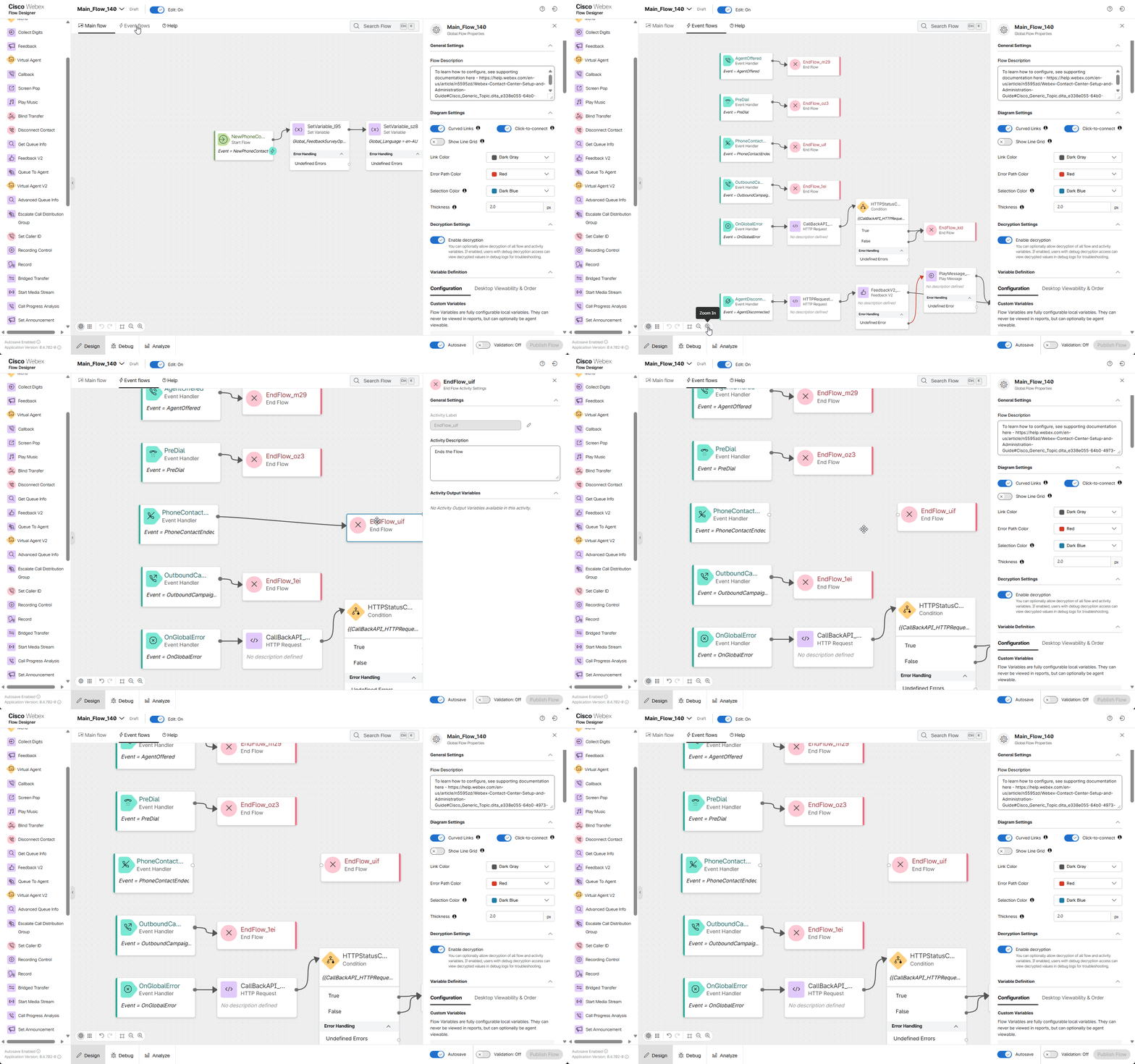
Click on the Event Flow
-
Locate PhoneContactEnded node and remove connection between this and EndFlow nodes.
-
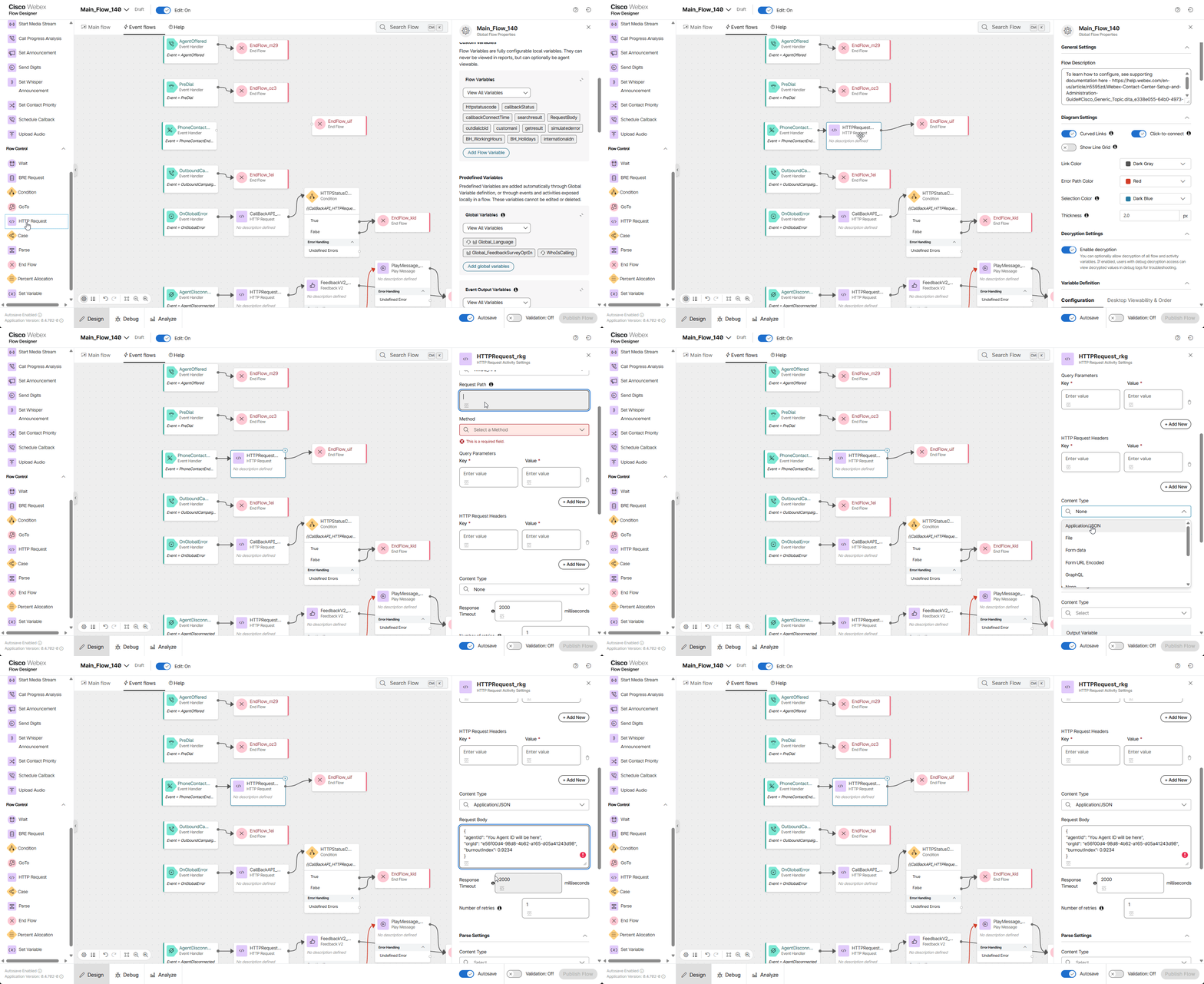
Add an HTTP Request node for our query:
-
Connect the output node edge from the PhoneContactEnded node to this node
-
Select Use Authenticated Endpoint
-
Connector: WxCC_API
-
Path: /agentburnout/mock/event
-
Method: POST
-
Content Type: Application/JSON
Request Body:
-
-
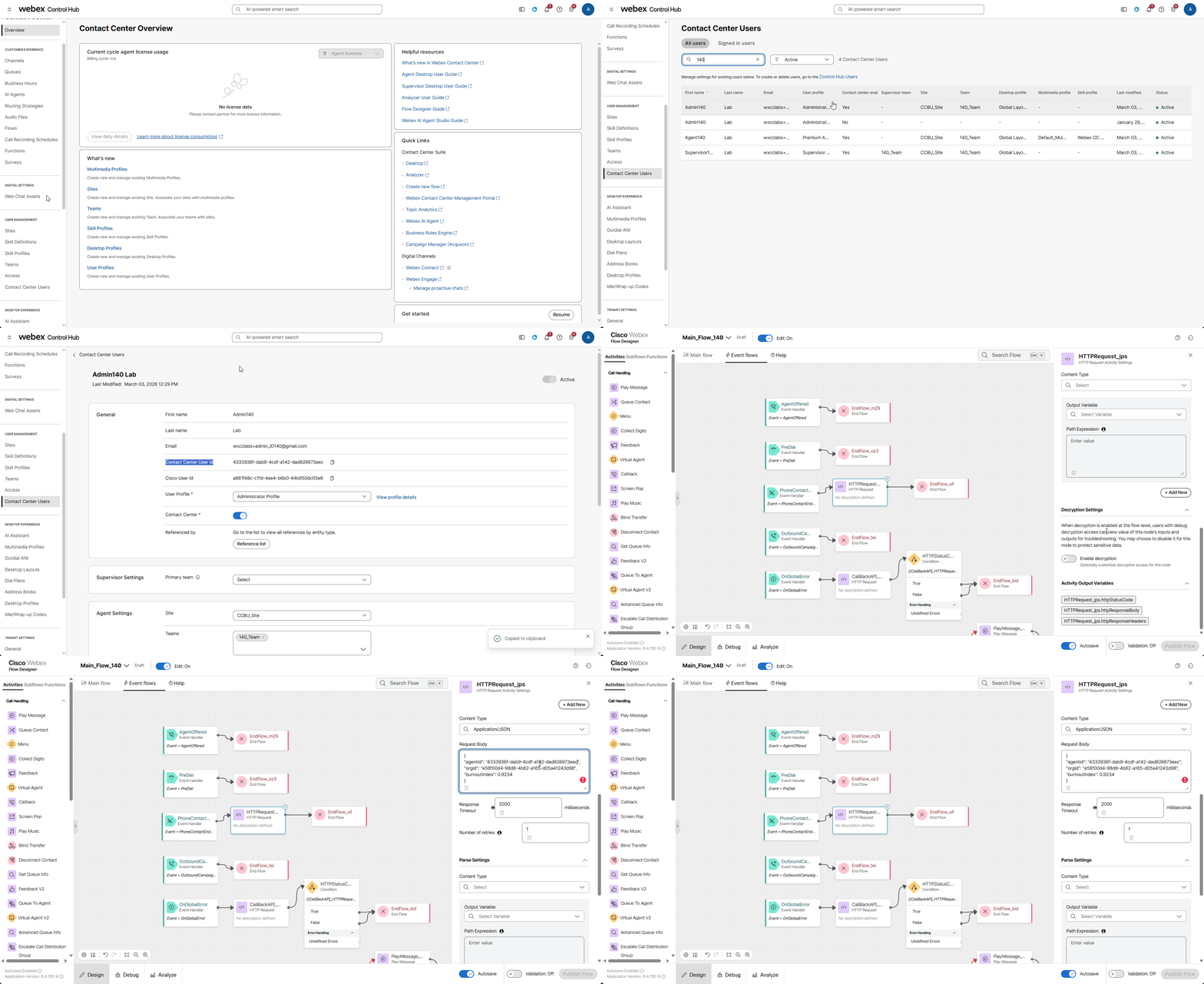
Switch to Control Hub, navigate to Contact Center Users and search for your admin user (who is also your agent) wxcclabs+admin_IDYour_Attendee_ID@gmail.com and open it.
-
Copy the Contact Center User Id to the buffer, then return to your flow and change agentid value from "Your Agent ID will be here" to id from the buffer. The id MUST be inside double quotes " ". Ex. "agentId": "4333936f-dab9-4cdf-a142-dad826673eec"
-
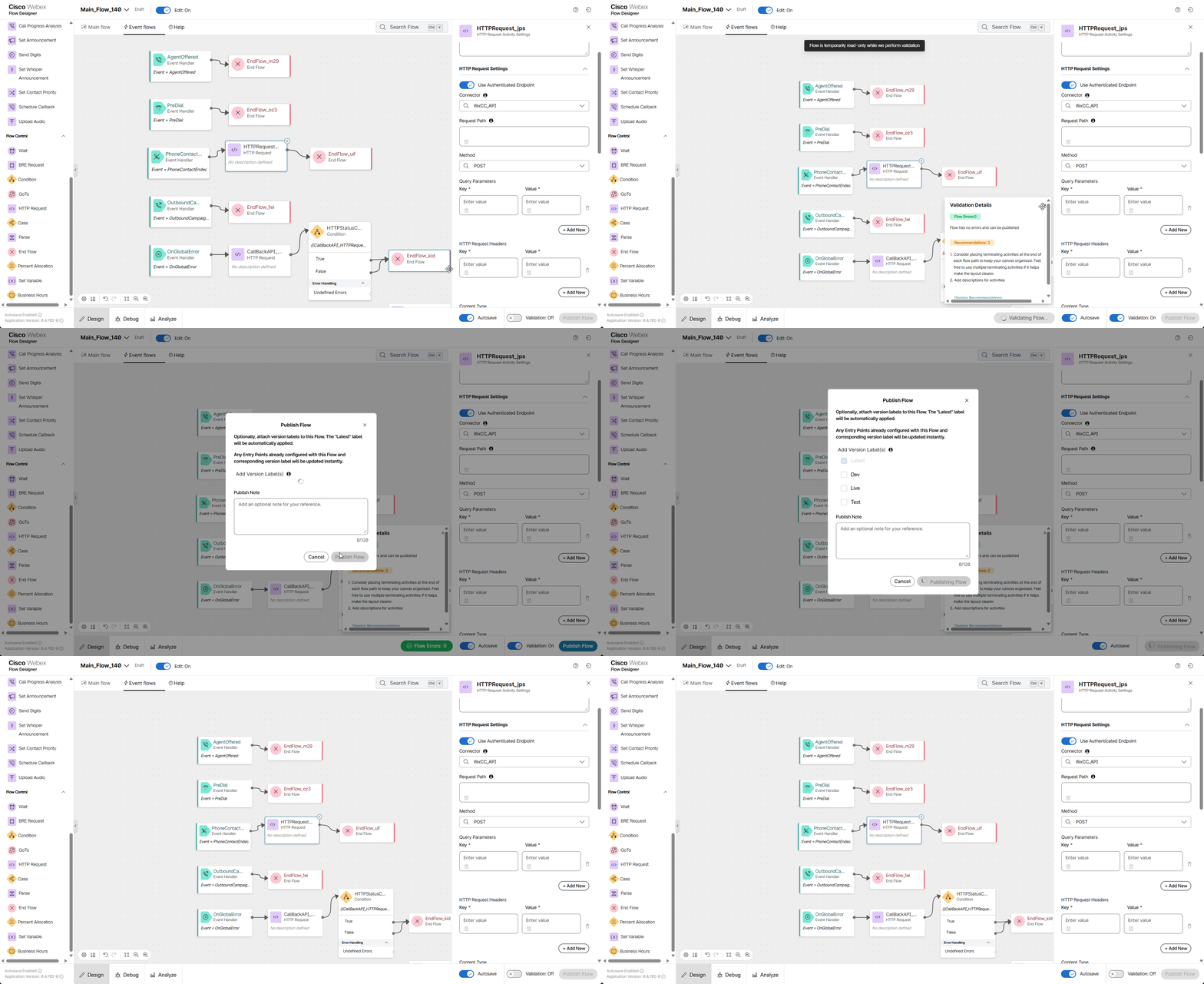
Validate and publish the flow:
-
Enable the Validation toggle in the bottom right corner of the flow designer window to check for any potential flow errors and recommendations.
-
If there are no Flow Errors after validation is complete, click on Publish Flow next to it.
-
In the pop-up window, ensure that the Latest label is selected in the Add Version Label(s) list, then click Publish Flow.
-
-
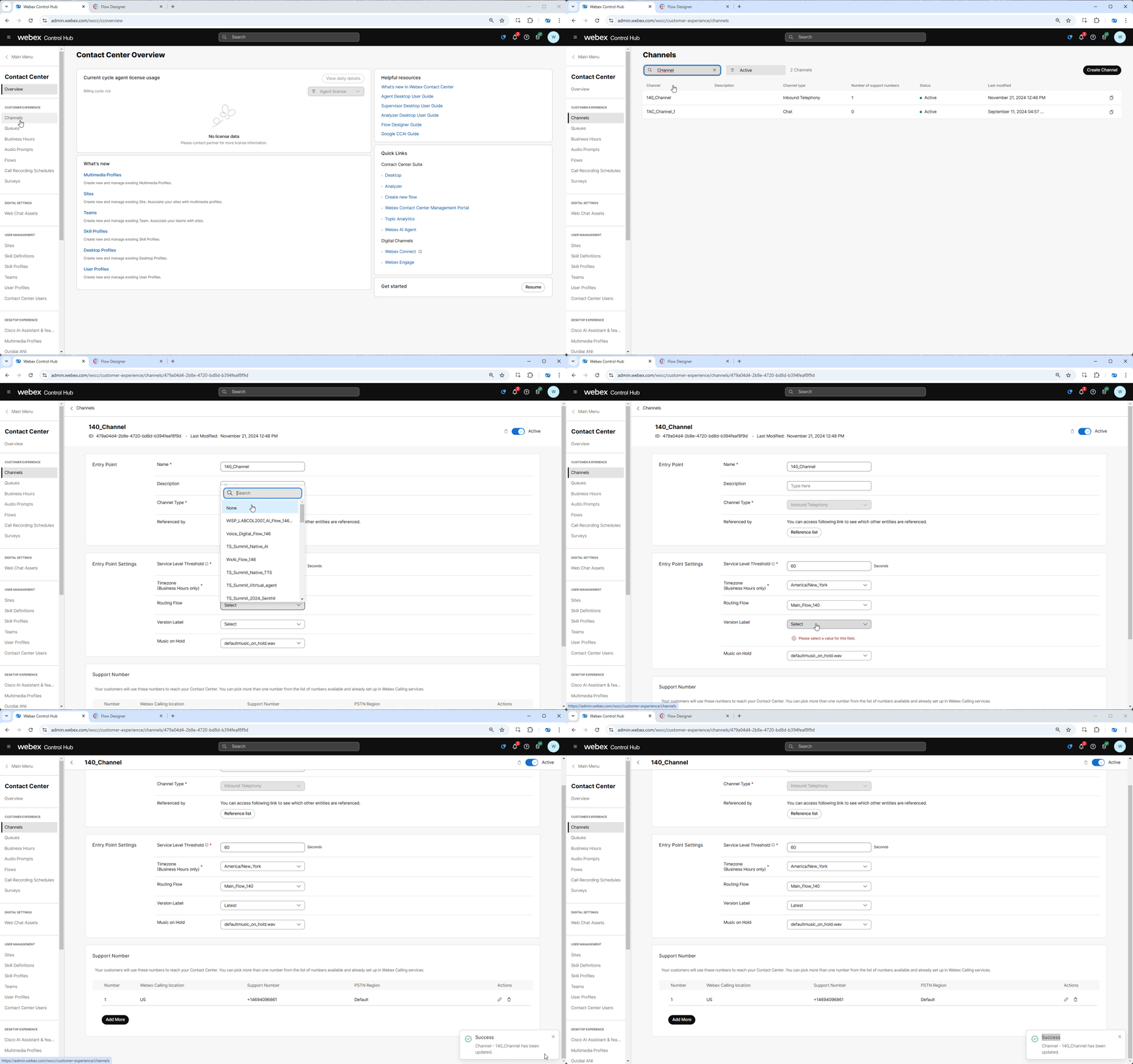
Return to Control Hub to assign the Flow to your Channel (Entry Point). Go to Channels, search for your channel Your_Attendee_ID_Channel
-
Click on Your_Attendee_ID_Channel. In Entry Point settings section change the following, then click Save button:
-
Routing flow: Main_Flow_Your_Attendee_ID
-
Music on hold: defaultmusic_on_hold.wav
-
Version label: Latest
-
Testing Agent Burnout feature (Simulation of Burnout Event)
Note
This simulation will demonstrate what the agent experiences when the AI model detects a threshold that initiates a wellness intervention.
-
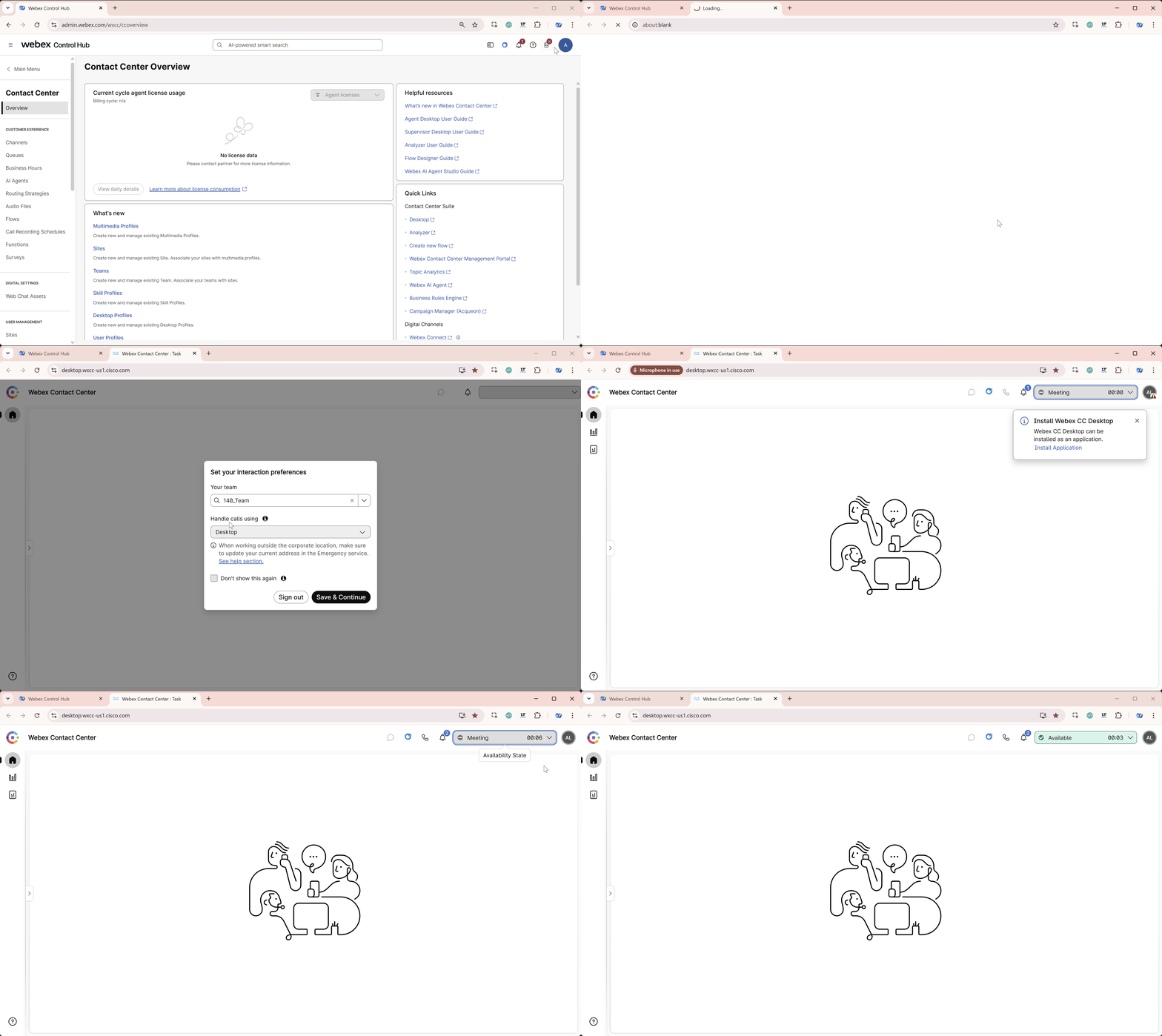
Your Agent Desktop session should still be active. If it is not, launch Desktop using the cross-launch link in Control Hub.
See how to run Agent Desktop from the Control Hub
-
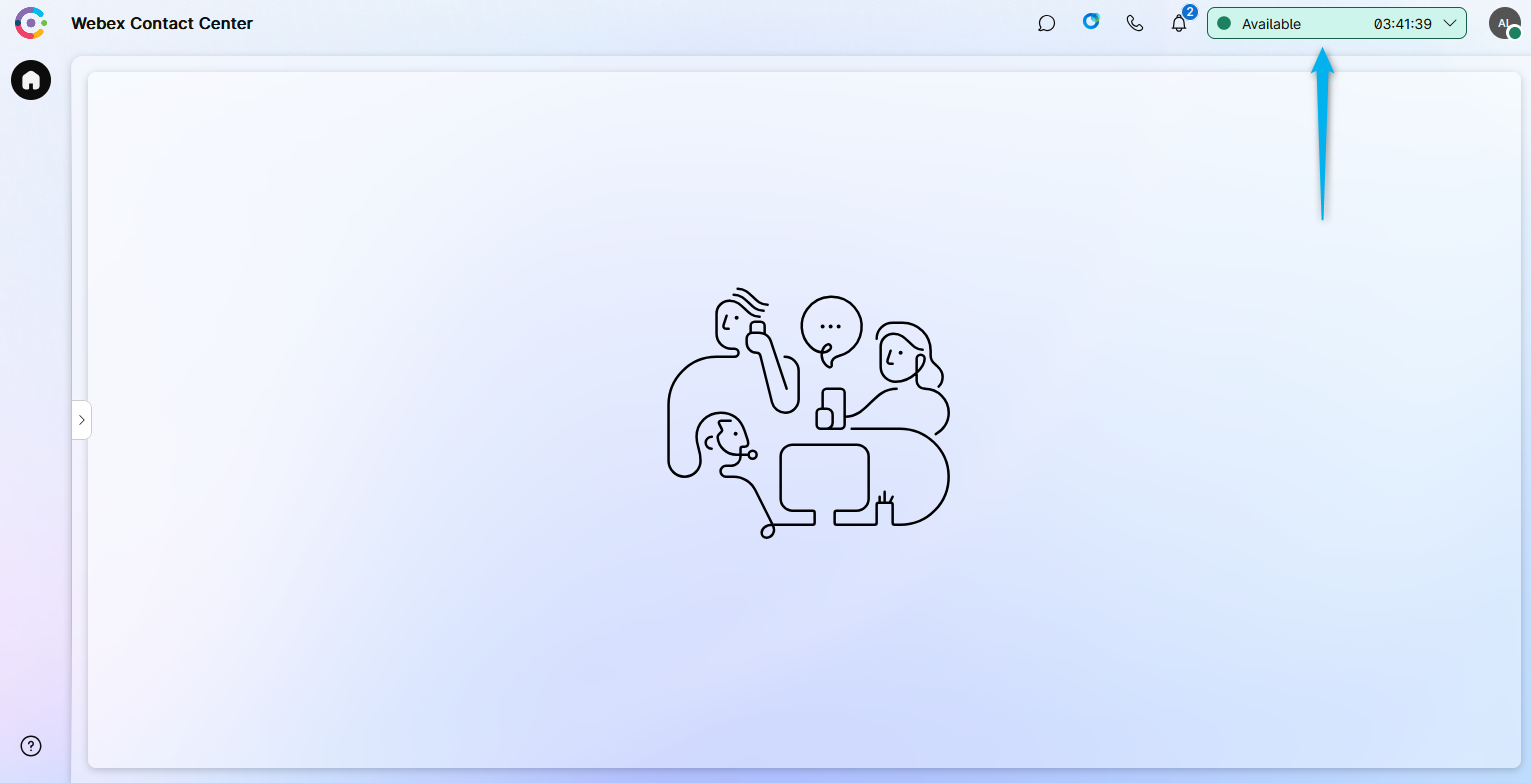
Make your agent Available and you're ready to make a call.
-
Place the test call to the number that is associated with your Your_Attendee_ID_Channel, and ask to talk to an agent.
-
Answer the call and then drop the call either on Agent Desktop or on caller side.
-
Click on Take a Break on AI Assistant pop-up window. Observe the actions taken by the contact center system once a burnout event is detected.
Congratulations, you have officially completed this mission! 🎉🎉