Mission 1: Webex AI Quality Management
🚨 Important Lab Dependency
This mission requires configuration created in the following missions:
- Core Track: Mission 1 - Basic Call Routing (Flow Template, TTS, Language)
- AI Assistant Track ⮕ AI Assistant Features: Mission 1 - Real Time Transcript
If this mission was not completed, some steps in current mission will not function correctly.
Mission overview
Your mission is to:
- Create an Evaluation Form with requirements to ask the caller's name and the occasion for the flower purchase. Make test calls and, using the Supervisor Dashboard, evaluate if the agent asked these questions to the caller.
Build
Create Evaluation form
-
In your browser, open New Incognito Window (need a new Desktop window to login as Supervisor).
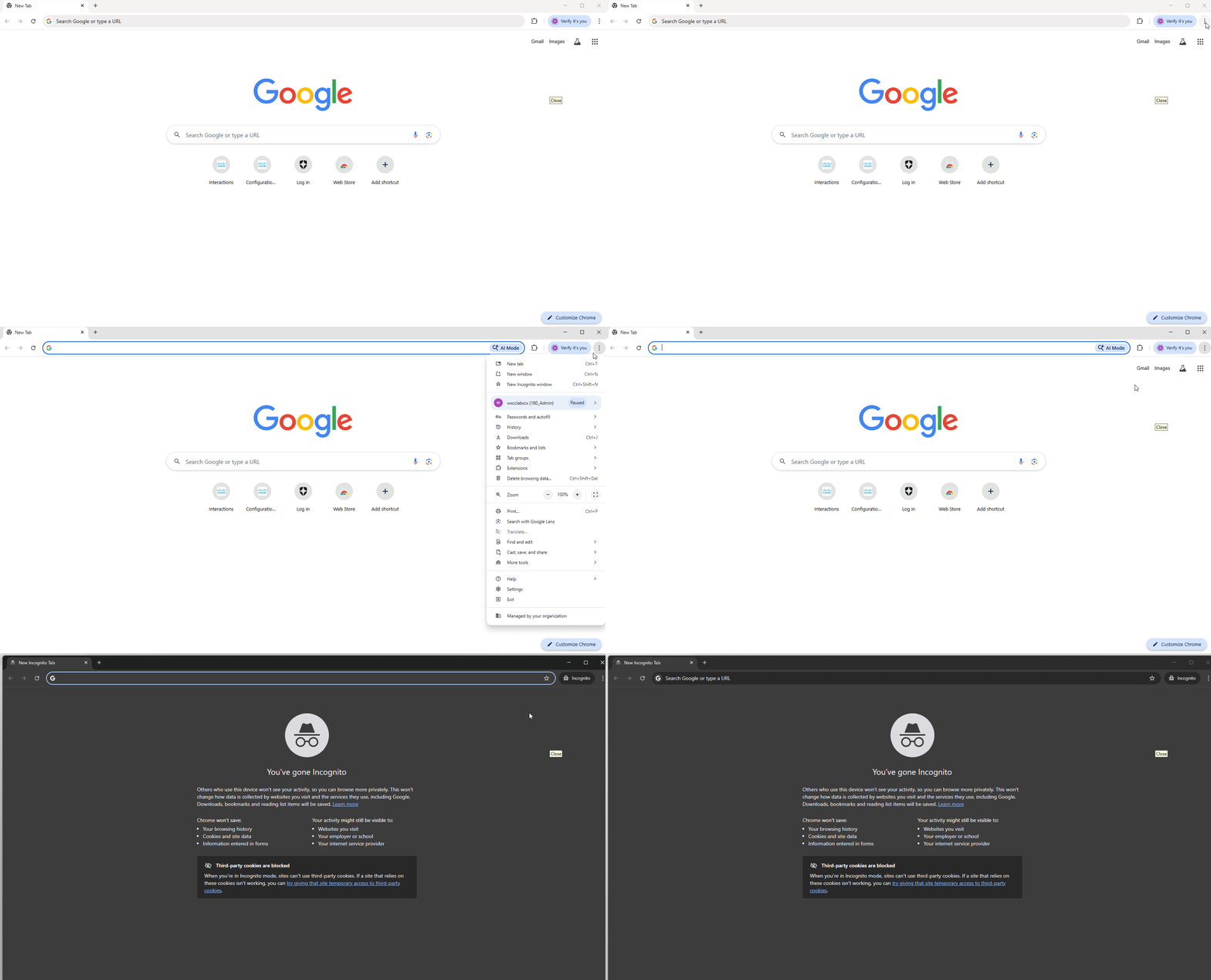
-
In this Incognito Window open up https://desktop.wxcc-us1.cisco.com/.
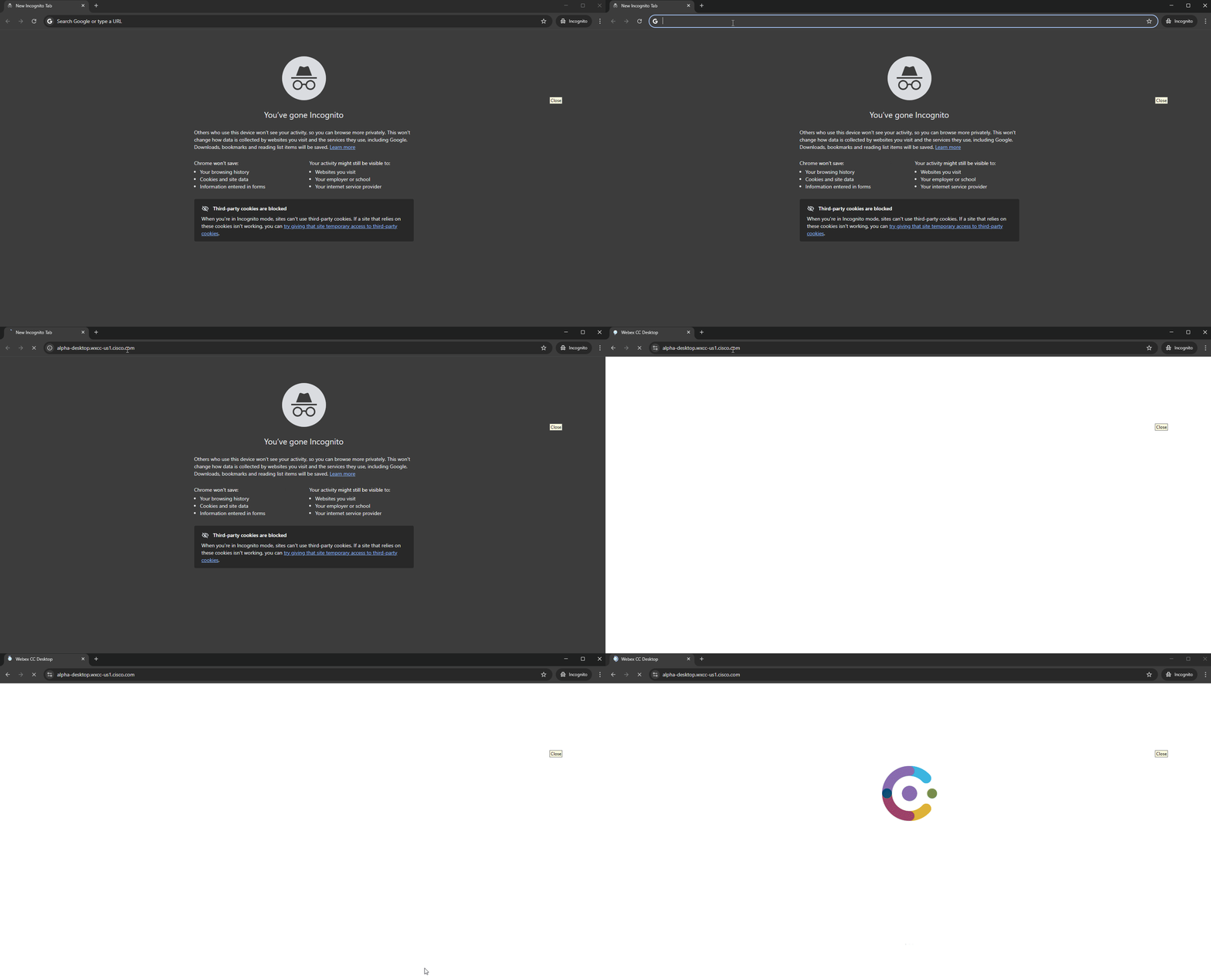
-
Login with your Supervisor user wxcclabs+supvr_IDYour_Attendee_ID@gmail.com. Password is the same as for your Admin user.
-
In the "Set your interaction preferences" pop-up window, select Role as Supervisor and Handle calls using Desktop. Allow using microphone.
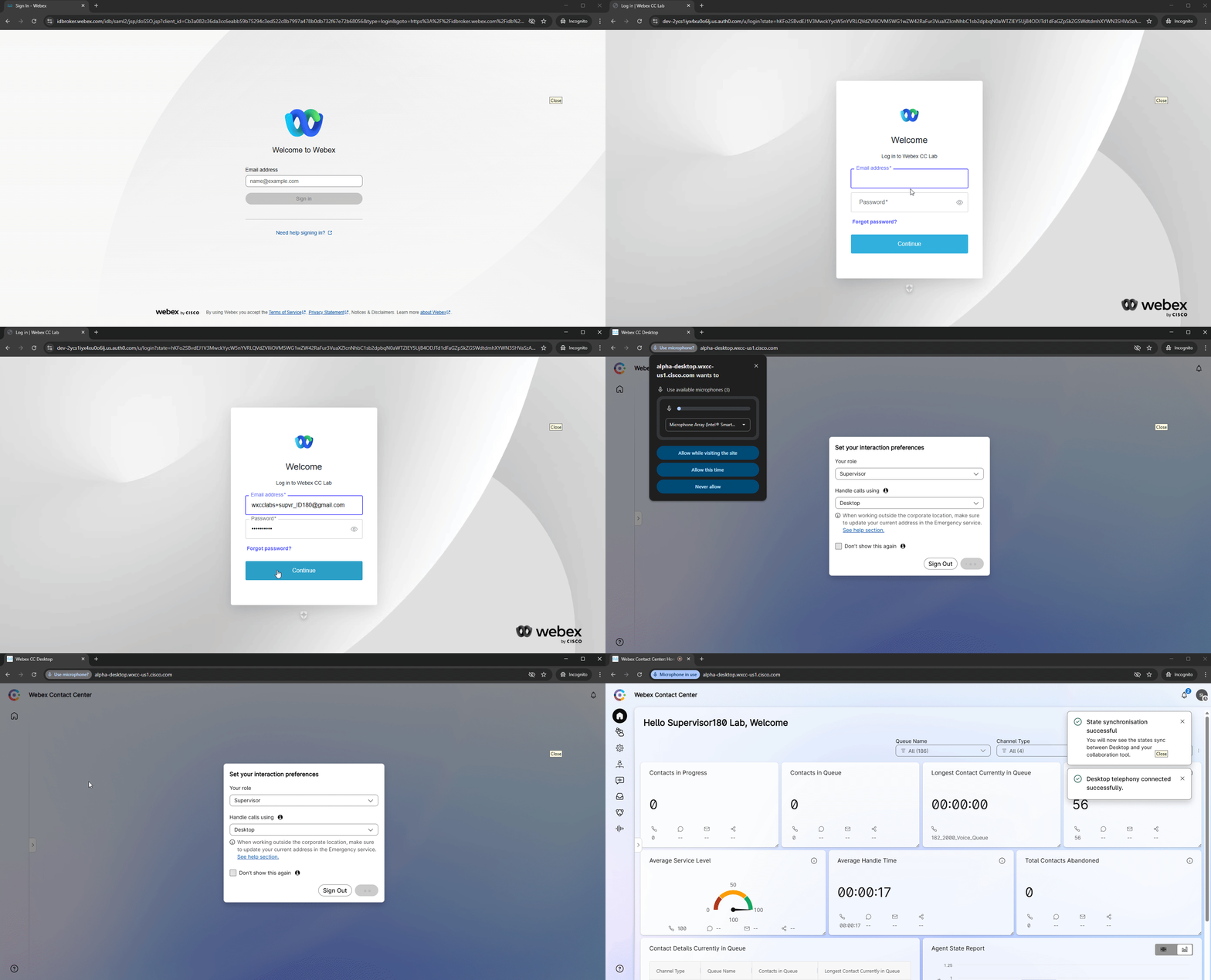
-
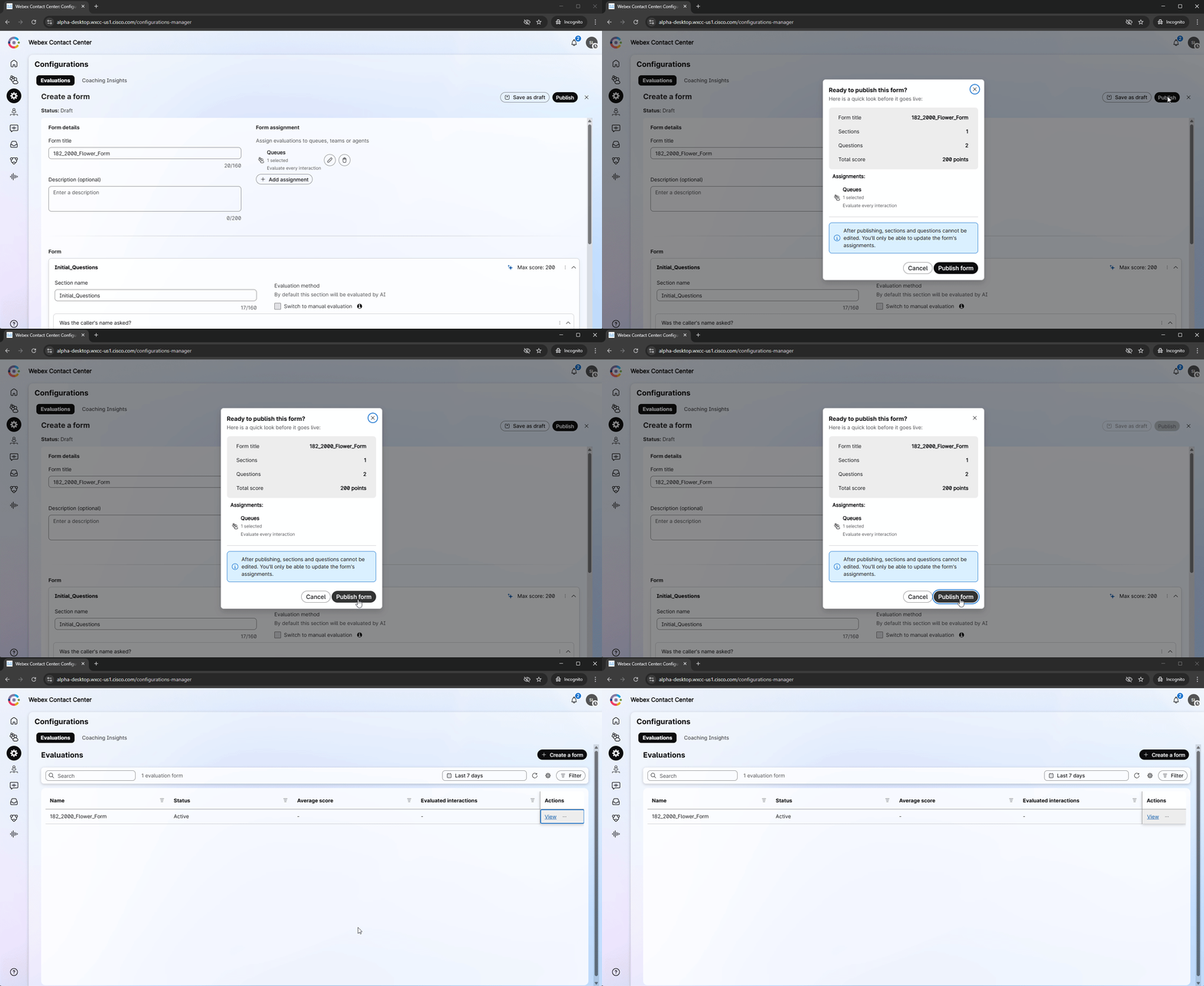
Click on Configurations and then select to Create a form.
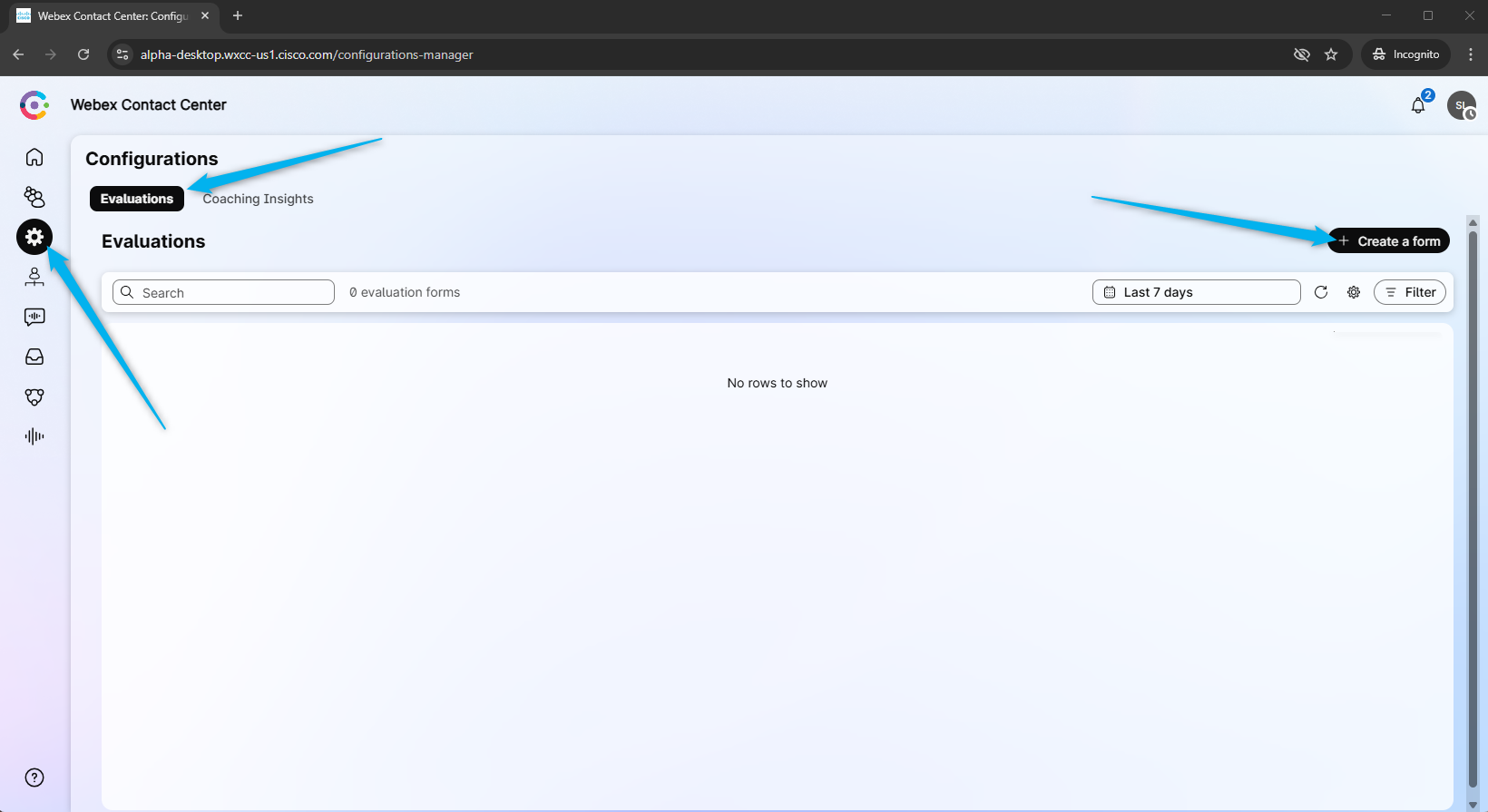
-
In the Form title field enter Your_Attendee_ID_Flower_Form. In the Section name field enter
Initial_Questions 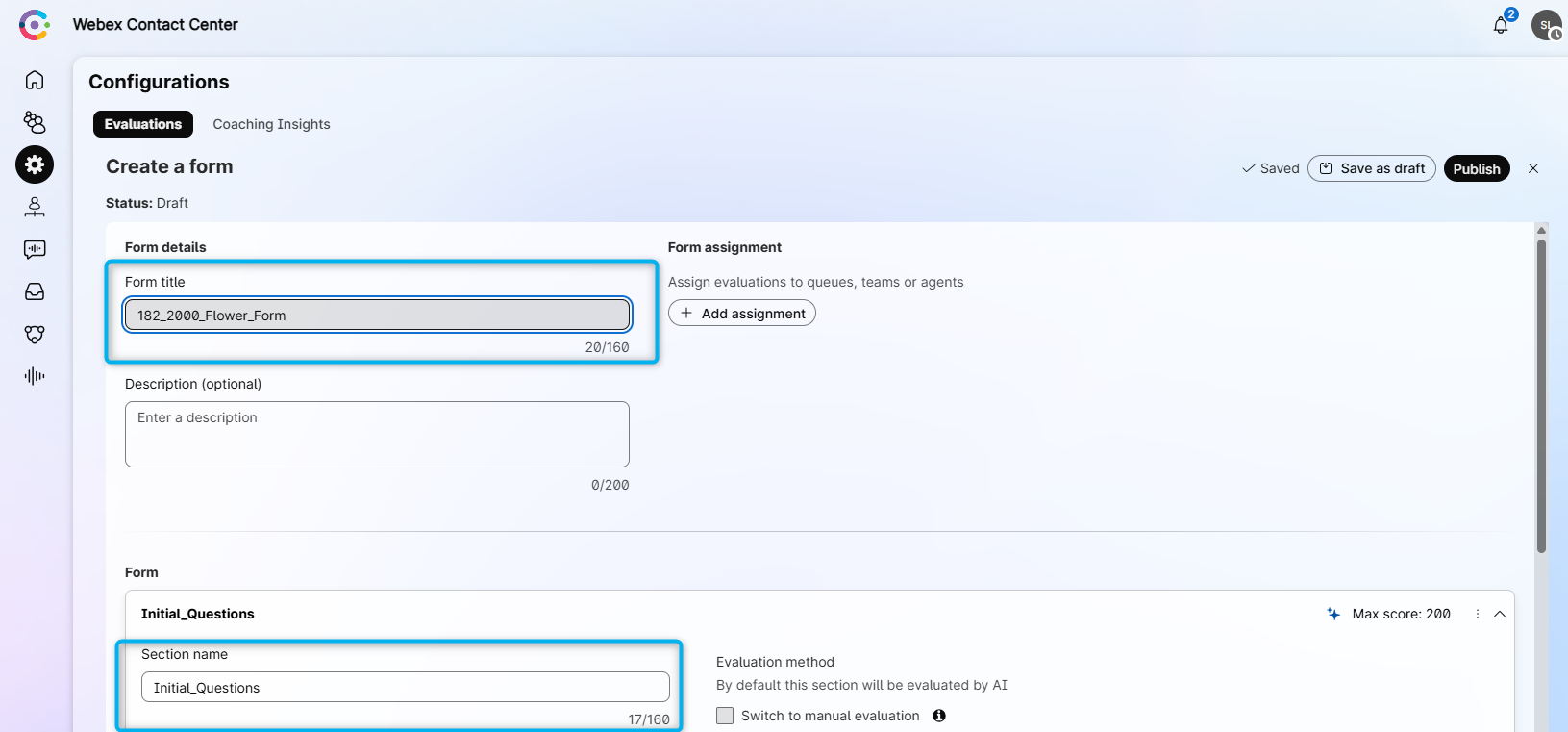
-
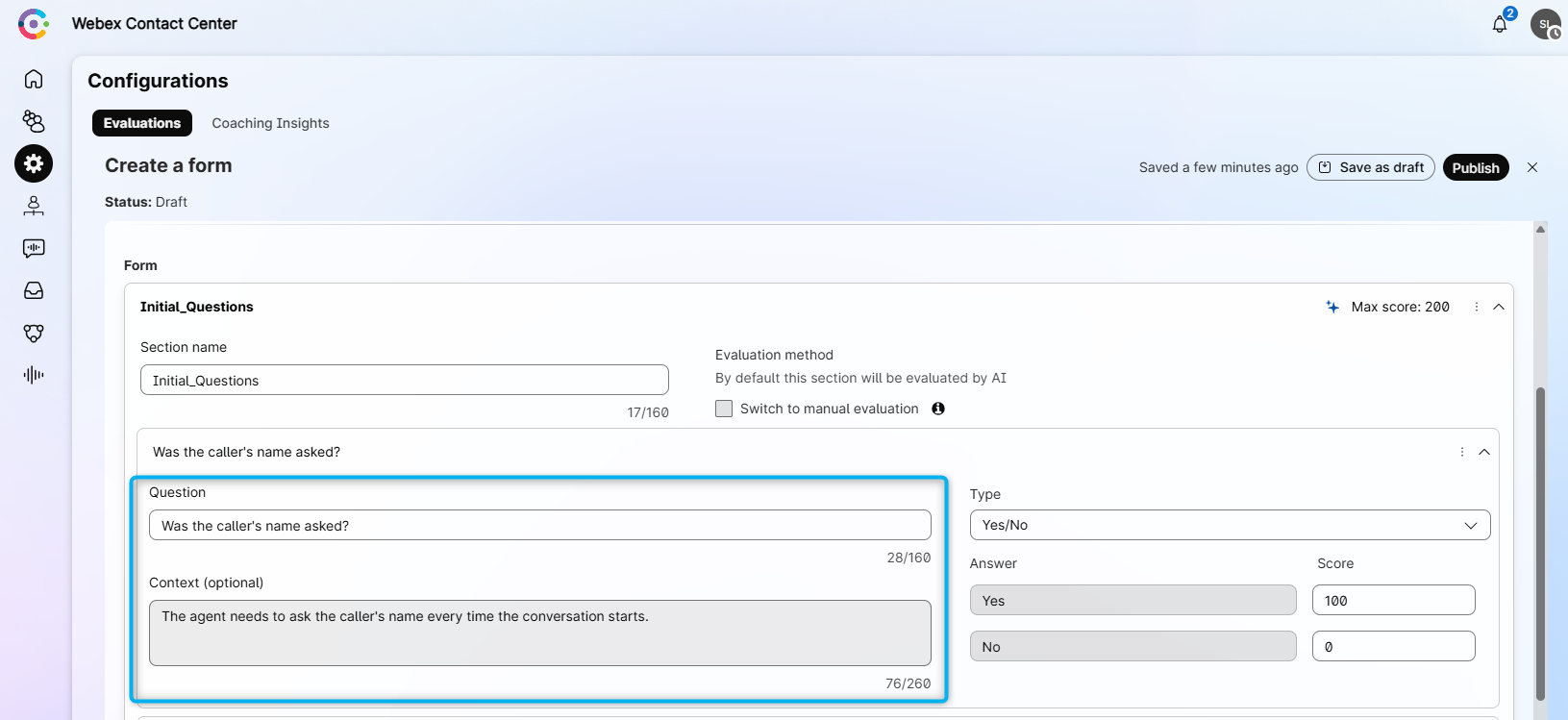
Configure the first question with the following:
Question: Was the caller's name asked?
Context: The agent needs to ask the caller's name every time the conversation starts.
-
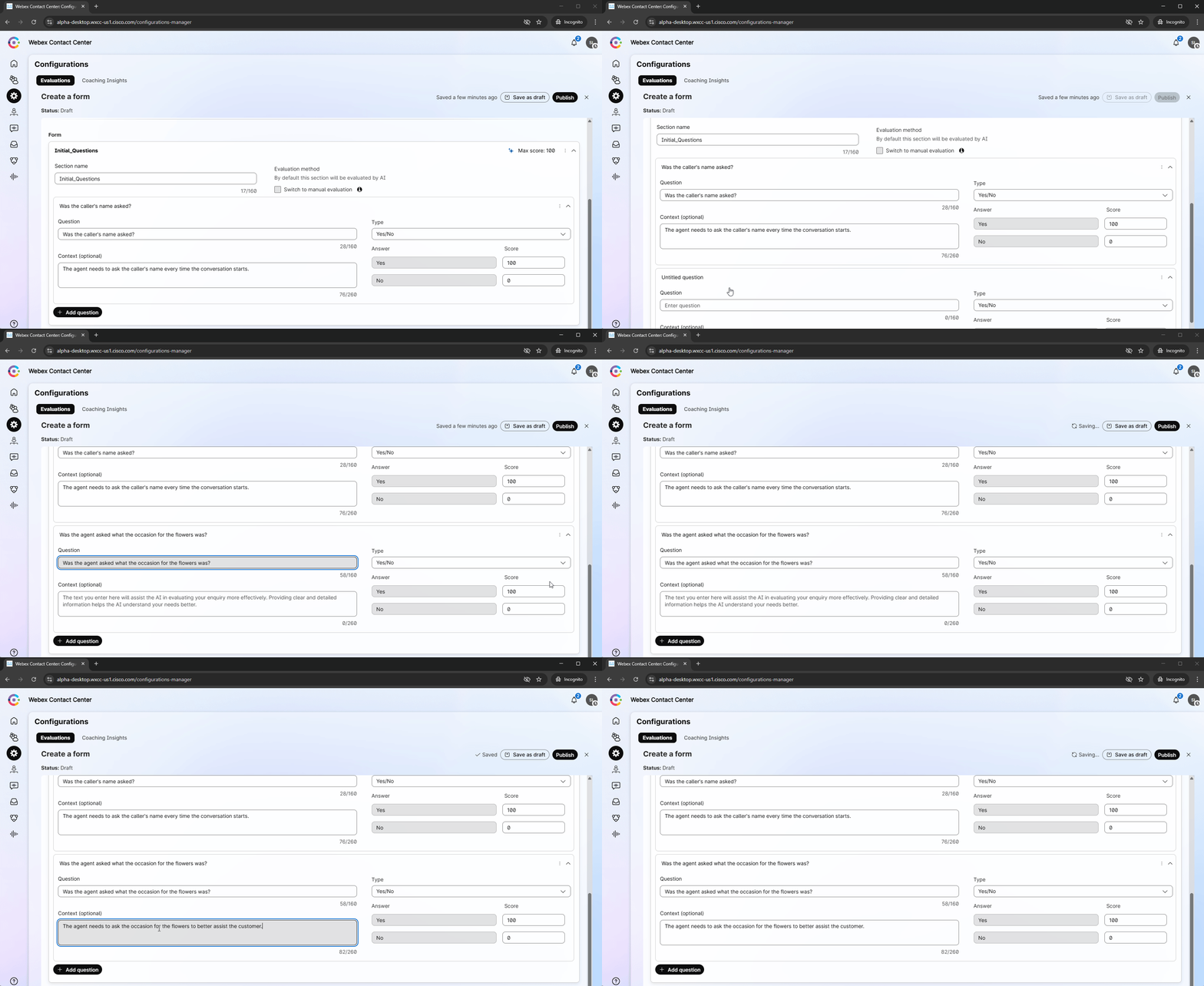
Click Add question and configure the second question with the following:
Question: Was the caller asked what the occasion for the flowers was?
Context: The agent needs to ask the occasion for the flowers to better assist the customer.
-
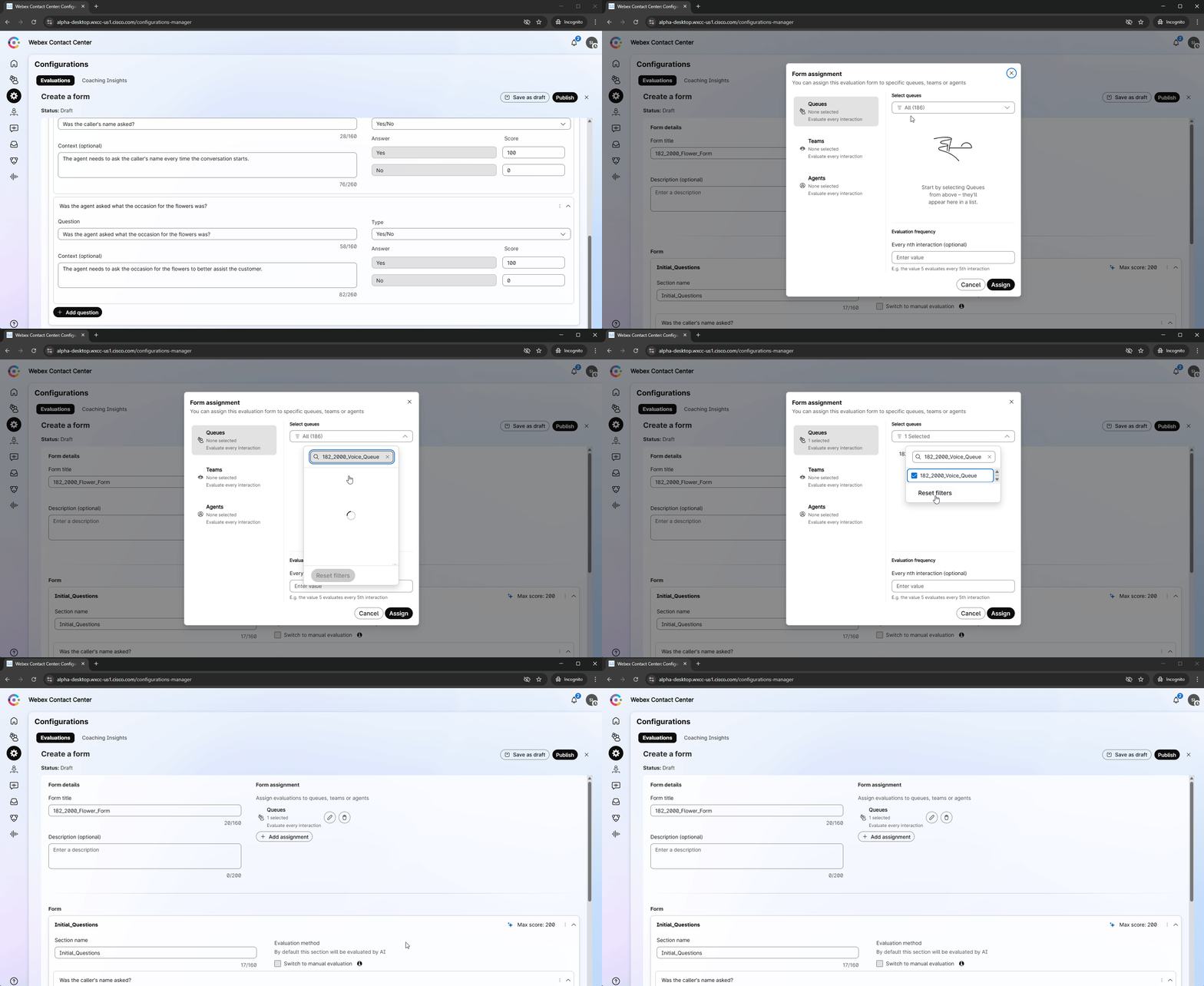
Scroll up and click on Add assignment. From the list of queues, select your queue Your_Attendee_ID_Queue. And click on Assign.
-
Publish the form.
Evaluate agent using the Evaluation form
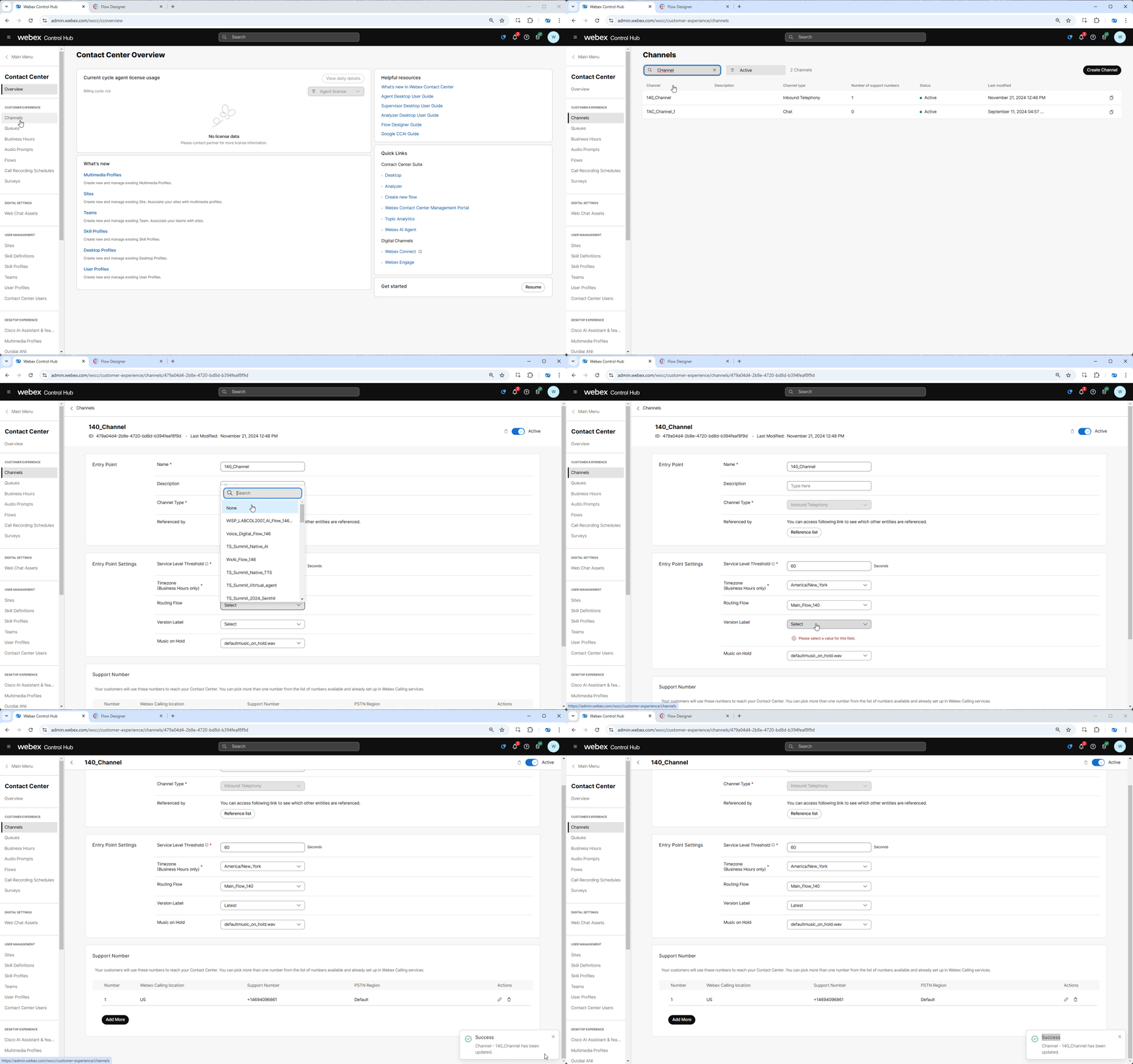
- Return to Control Hub to assign the Flow to your Channel (Entry Point). Go to Channels, search for your channel Your_Attendee_ID_Channel
- Click on Your_Attendee_ID_Channel
-
In Entry Point settings section change the following, then click Save button:
-
Routing flow: Main_Flow_Your_Attendee_ID
-
Music on hold: defaultmusic_on_hold.wav
-
Version label: Latest
-
-
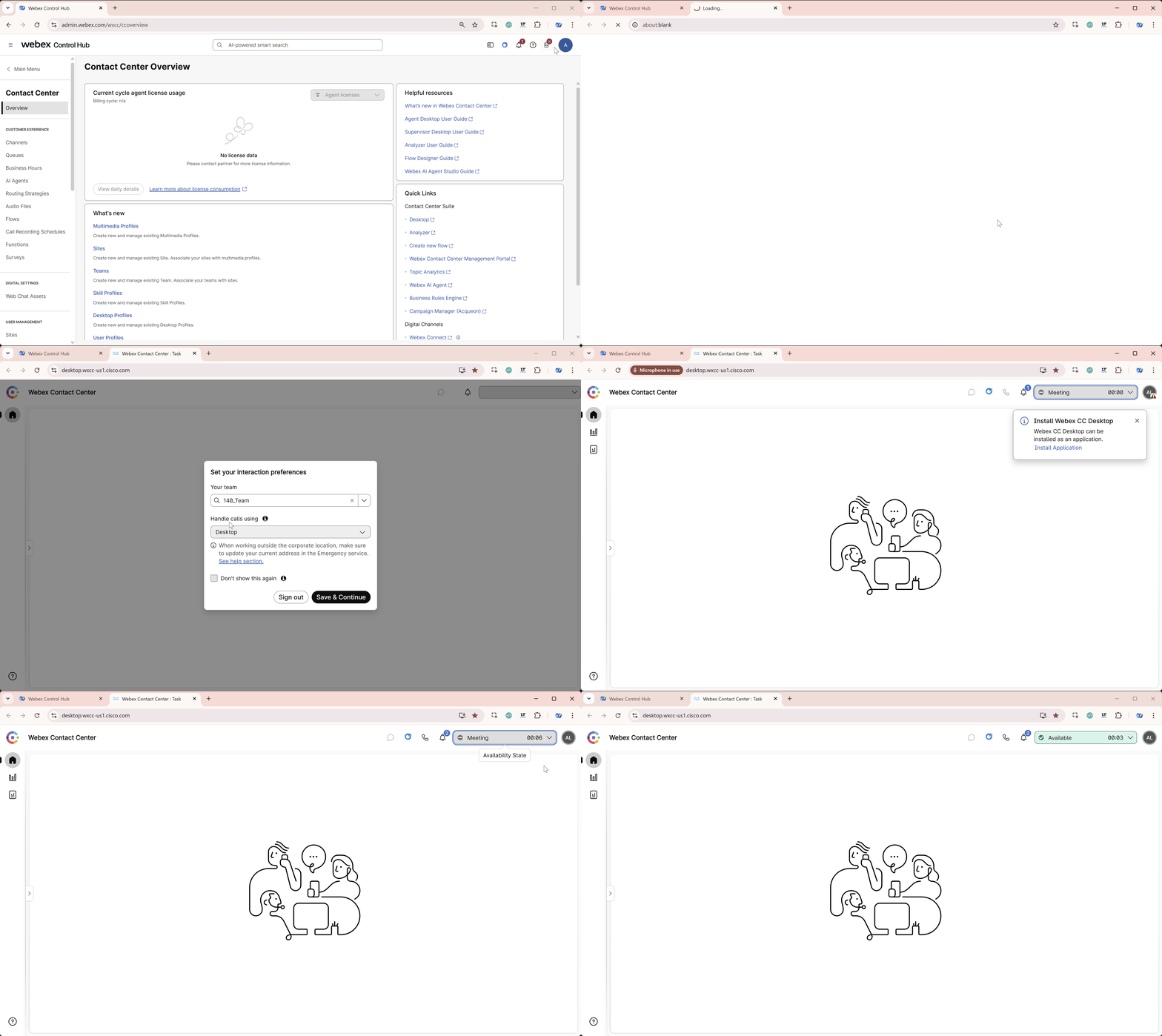
Go back to your non-incognito browser. Your Agent Desktop session should still be active. If it is not, launch Desktop using the cross-launch link in Control Hub.
See how to run Agent Desktop from the Control Hub
-
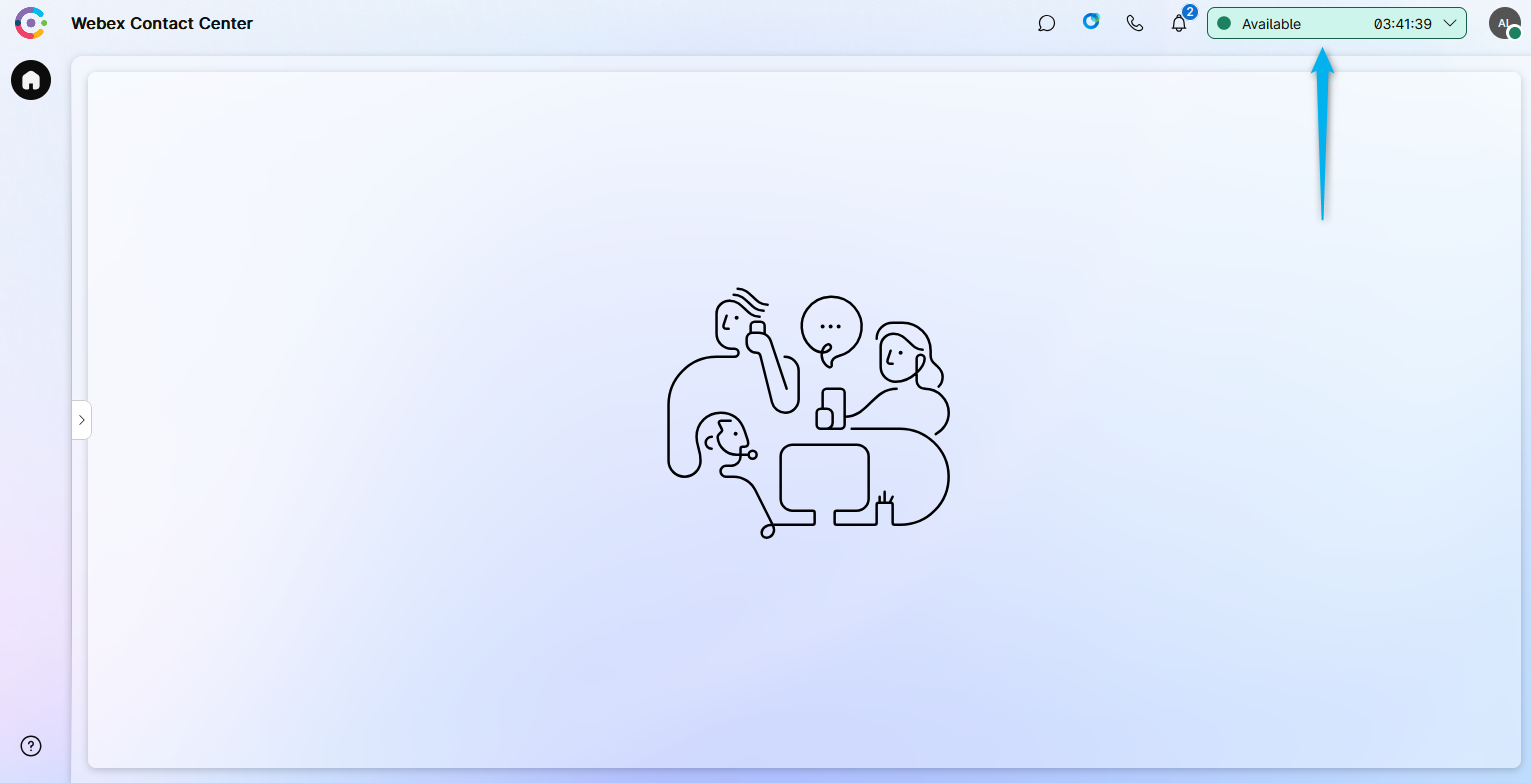
Make your agent Available and you're ready to make a call.
-
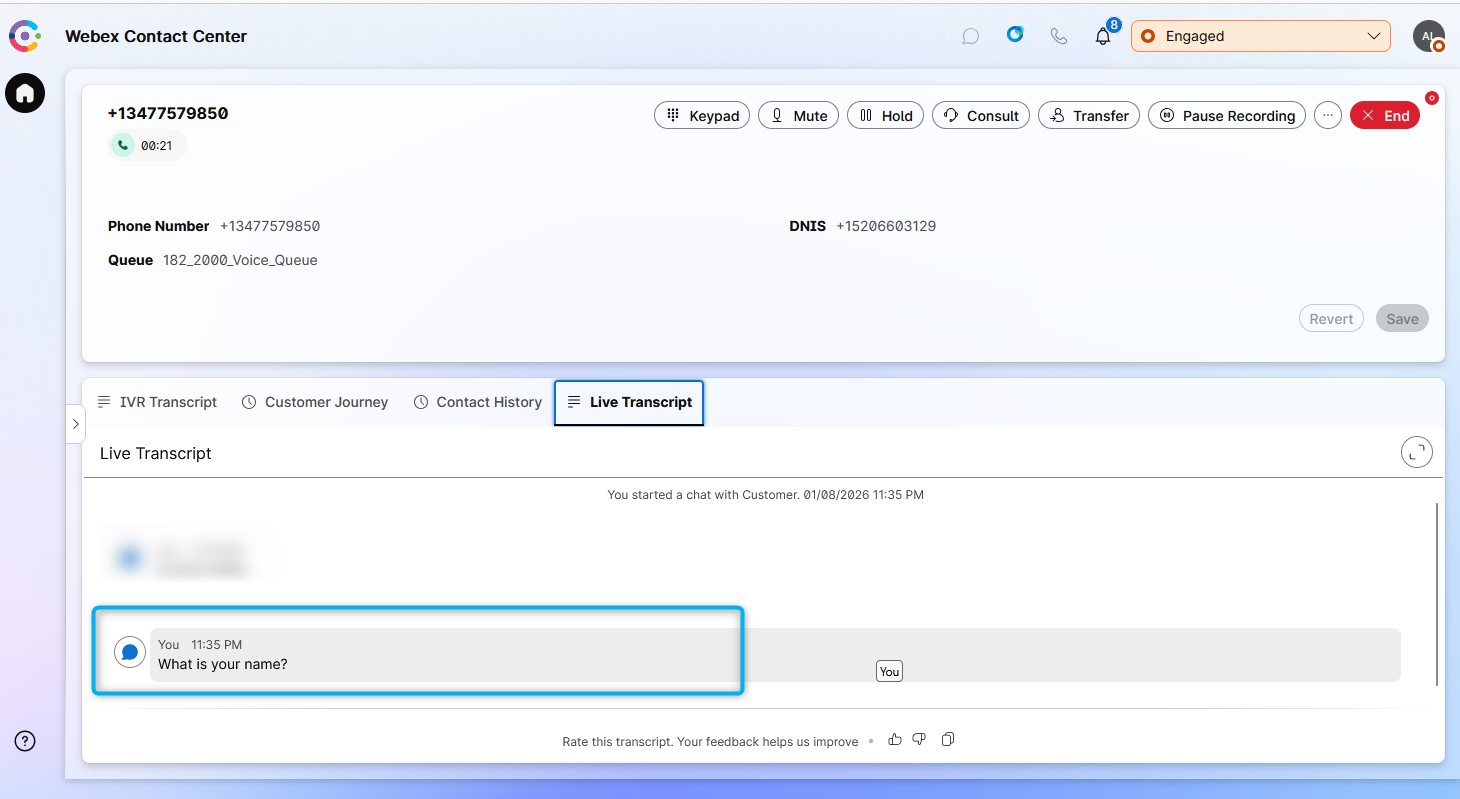
Place a test call to the number that is associated with your channel Your_Attendee_ID_Channel. During the conversation, ask the caller's name but don't ask what the occasion of the flowers is.
-
Complete the call.
-
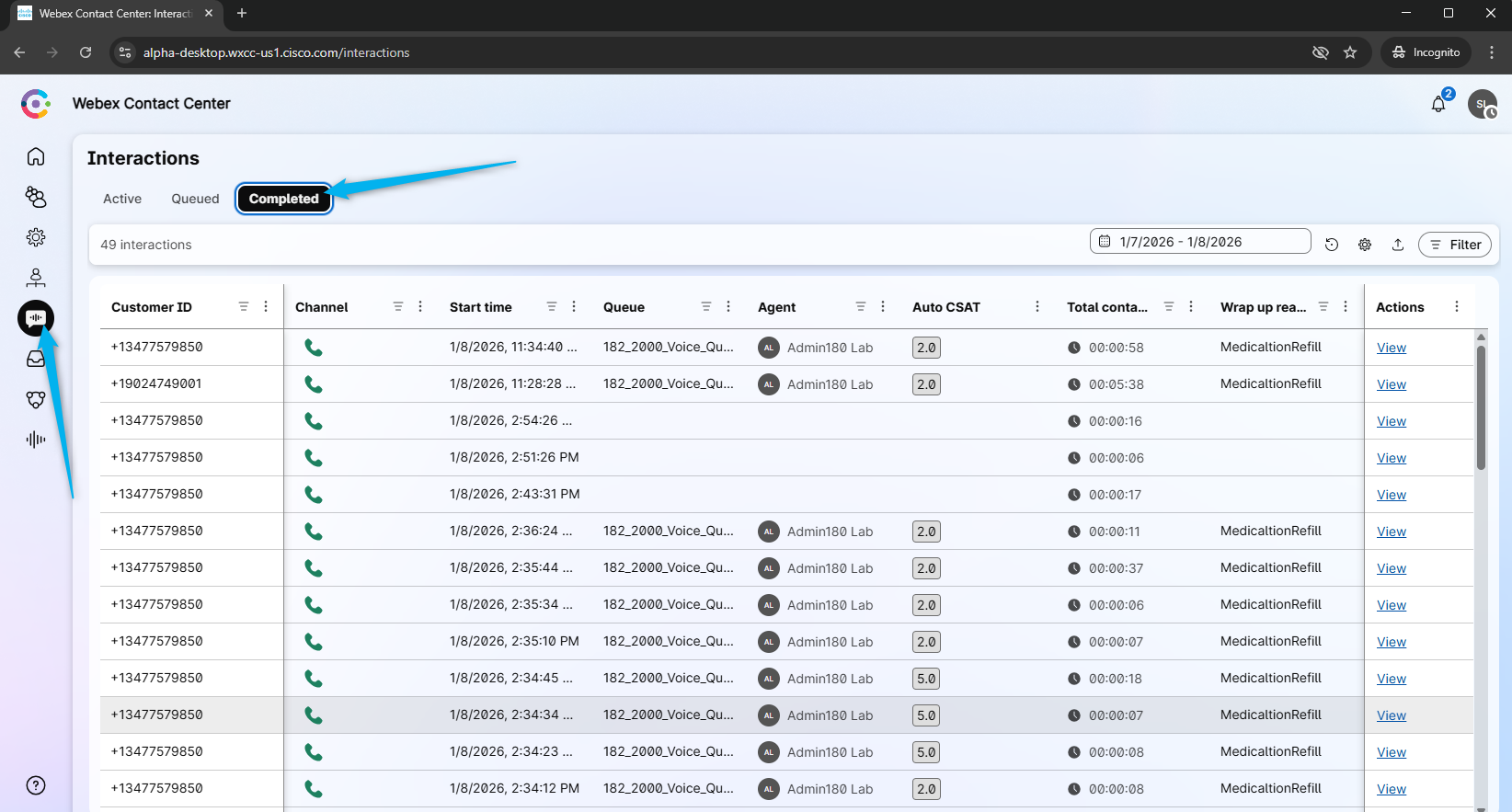
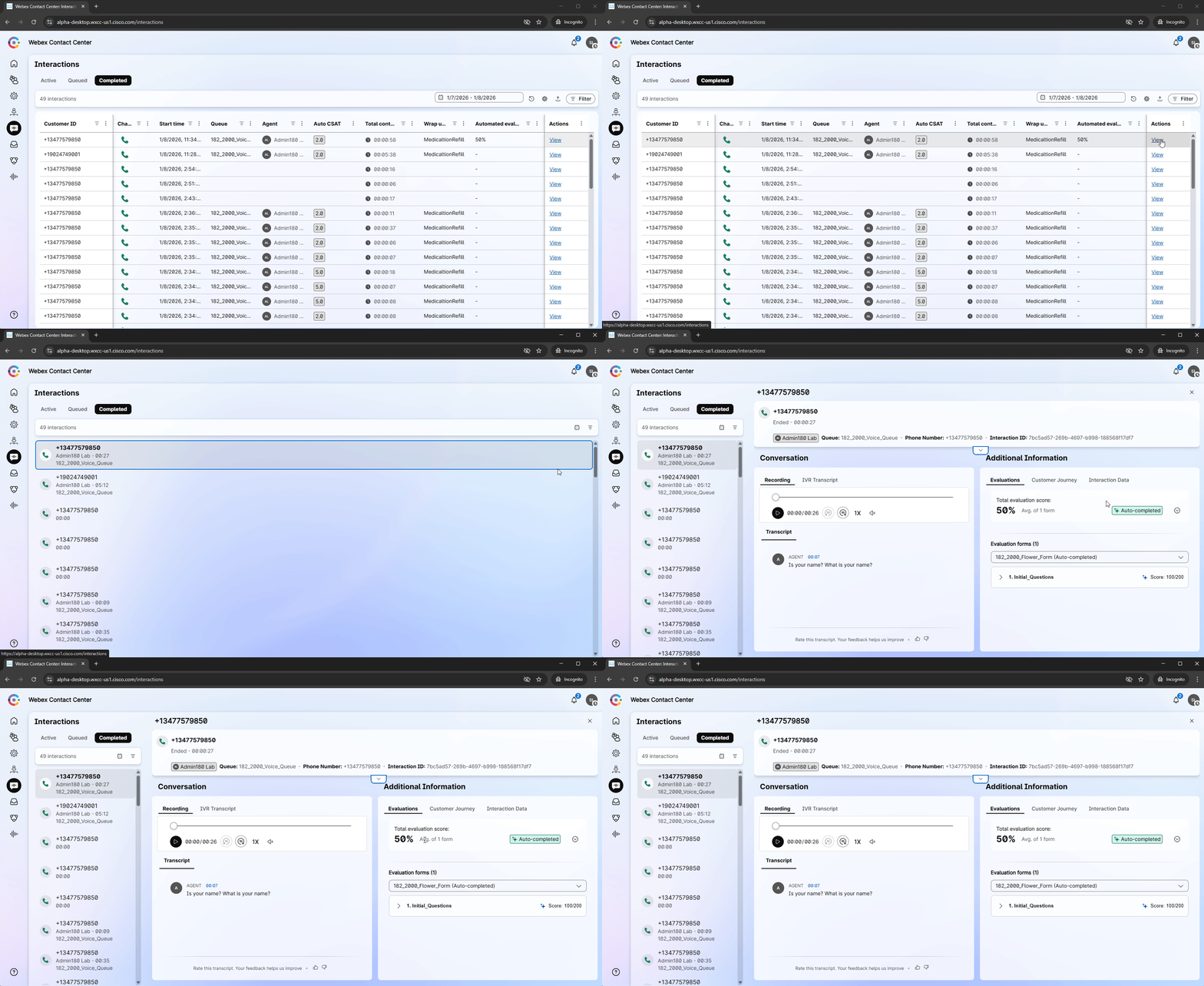
Switch back to your Supervisor Desktop in the Incognito Window (https://desktop.wxcc-us1.cisco.com/), click on Interactions and select Completed.
-
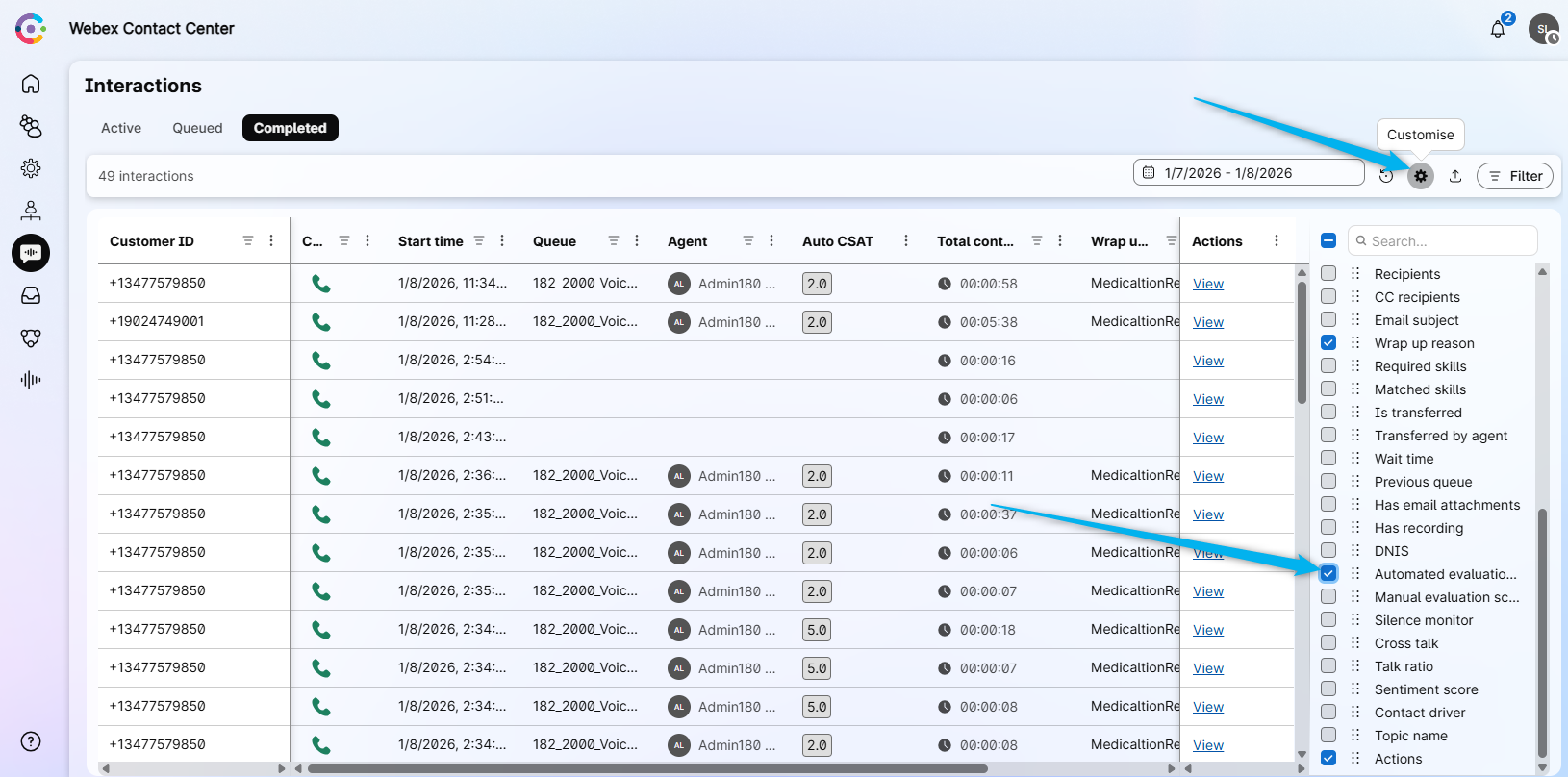
Find the Customize option and add Automated evaluation column.
-
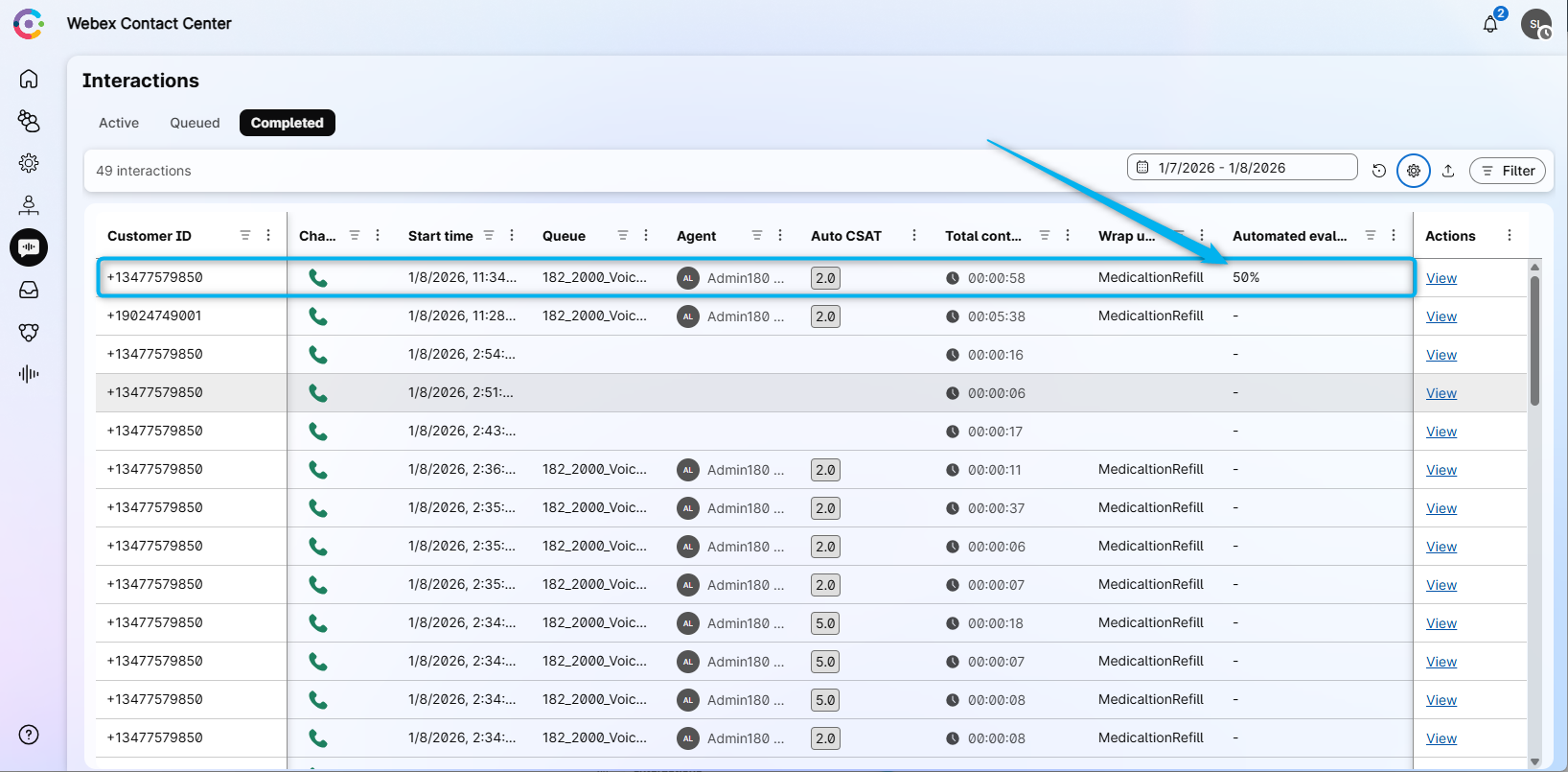
Review your call and you should see the evaluation as 50%, as you only answered one of the two questions.
-
Click on View to see more details about the interaction and evaluation.
Congratulations, you have officially completed this mission! 🎉🎉