Mission 3: Call Drop Summary
🚨 Important Lab Dependency
This mission requires configuration created in the following missions:
If this mission was not completed, some steps in current mission will not function correctly.
Feature Description
Customers find it frustrating to repeat themselves, especially after a call drop. Now, agents can pick up where the call left off, reducing frustration and handling time, while empowering agents to work more efficiently.
The Cisco AI Assistant provides a summary of the recently dropped interaction, detailing the reason for the call and the last action discussed. This enables agents to seamlessly resume the conversation.
Mission Details
Your mission is to:
- Understand how Call Drop Summary feature is enabled.
- Test Call Drop Summary feature.
[READ ONLY] Verify feature configuration
-
You should have the new AI Assistant SKU A-FLEX-AI-ASST from CCW provisioned in the tenant.
-
Once you have provisioned it, admins with the appropriate profile and access controls will be able to see the AI Assistant menu in Control Hub. From there, the customer can enable/disable the Call Drop Summaries features from the Control Hub.
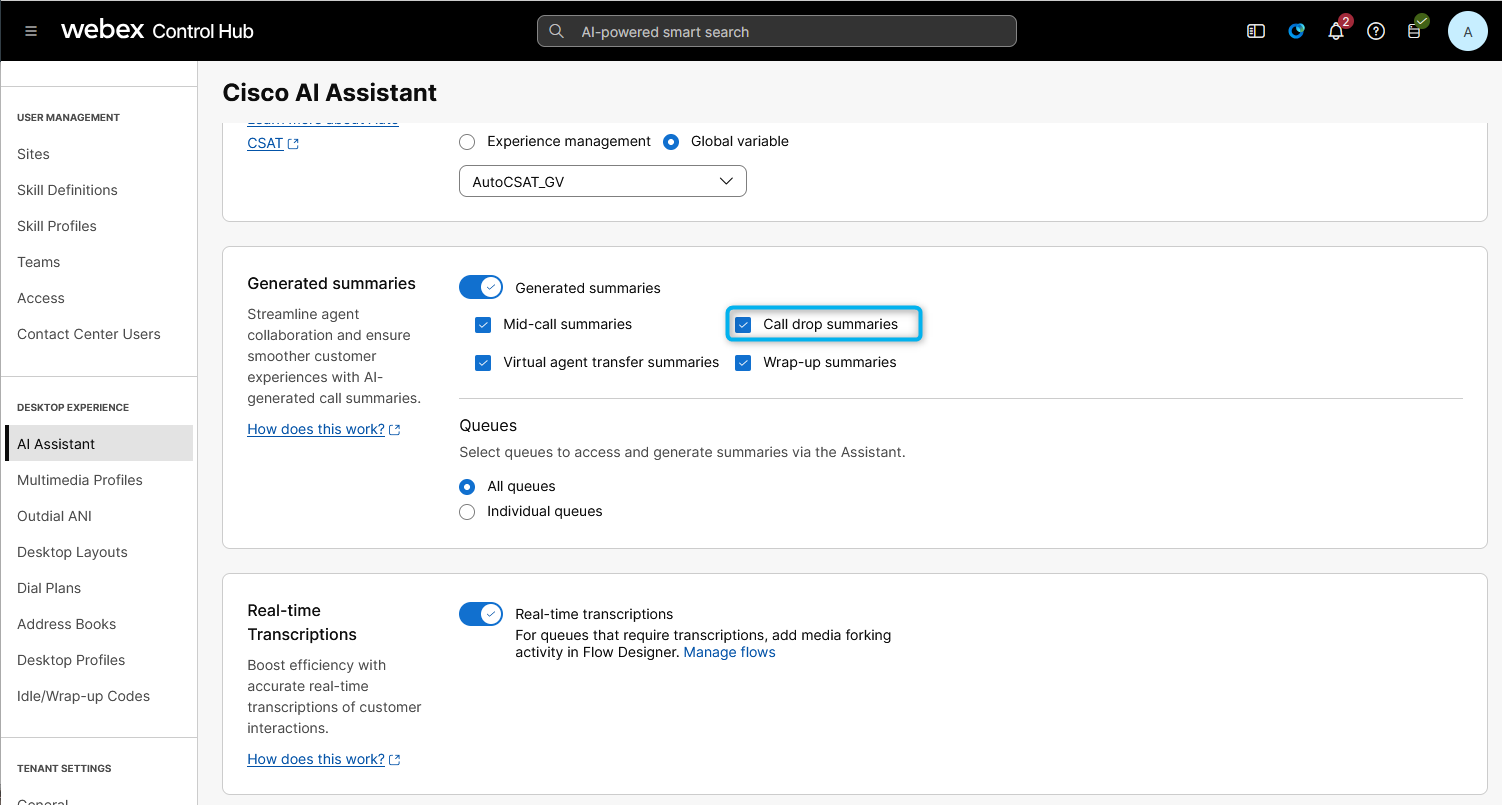
-
The Agent needs to logged in to the Team that is configured with Desktop Layout that has Agent Assistance features configured (Note: Default desktop layout already incudes the AI Agent Assistance widget).
Agents Team: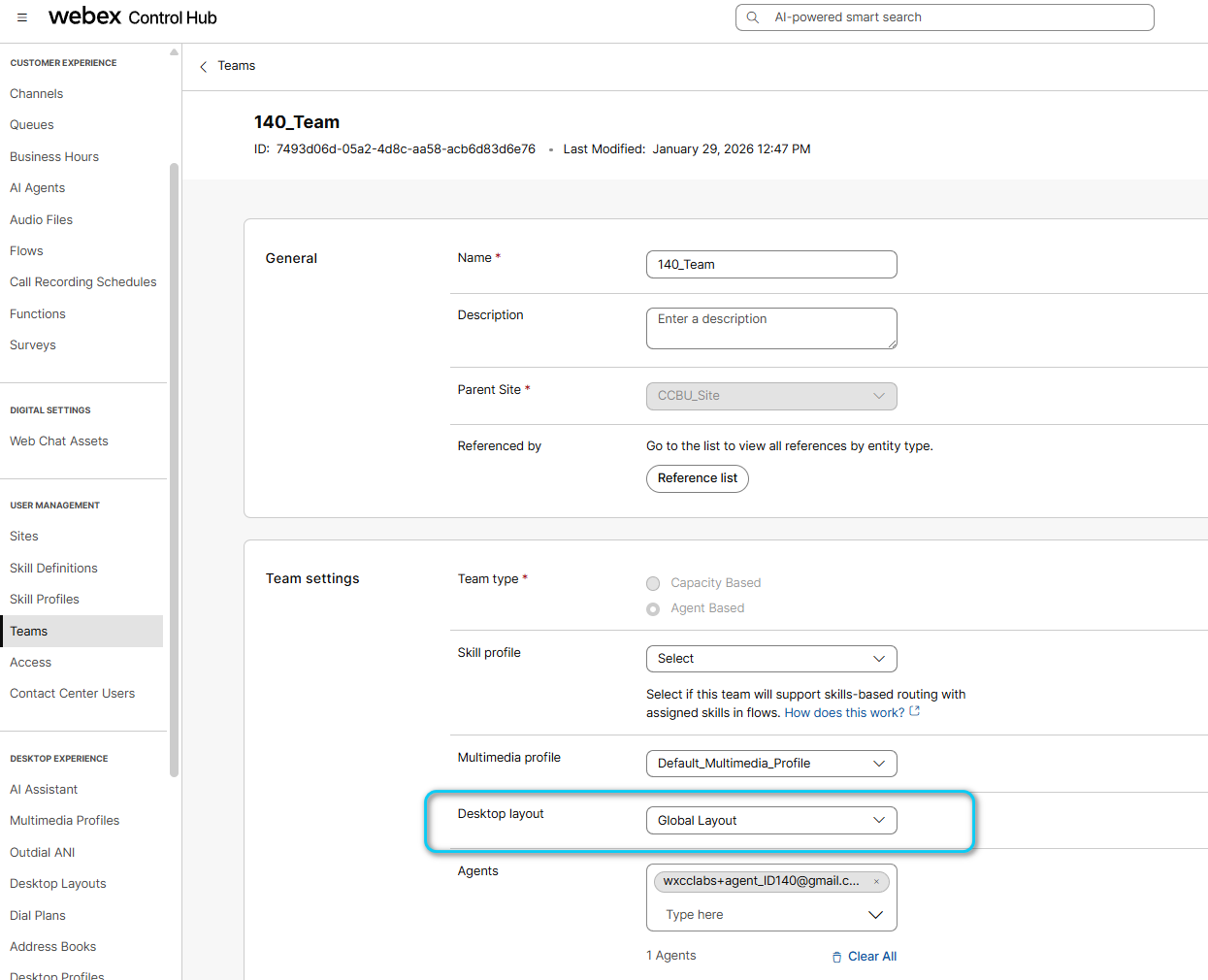
Desktop Layout: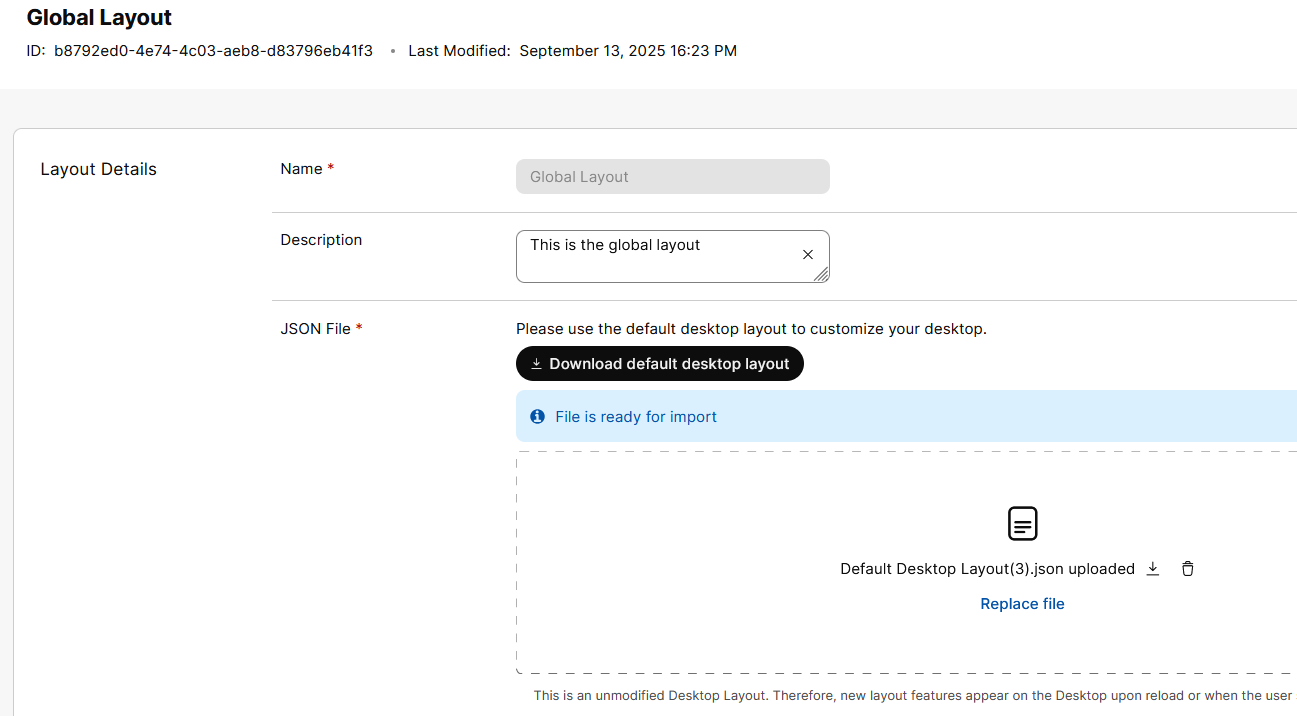
Desktop Layout file: Make sure ai-assistant is configured under the advancedHeader.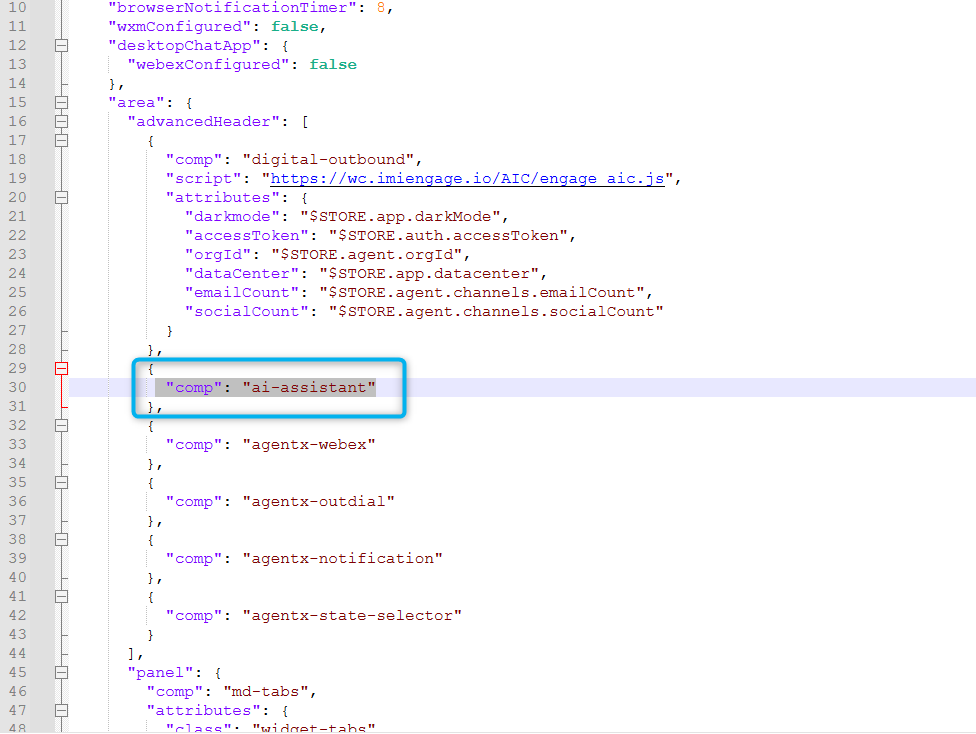
You can download a preconfigured desktop layout here.
Desktop Layout
Testing Call Drop Summary Feature
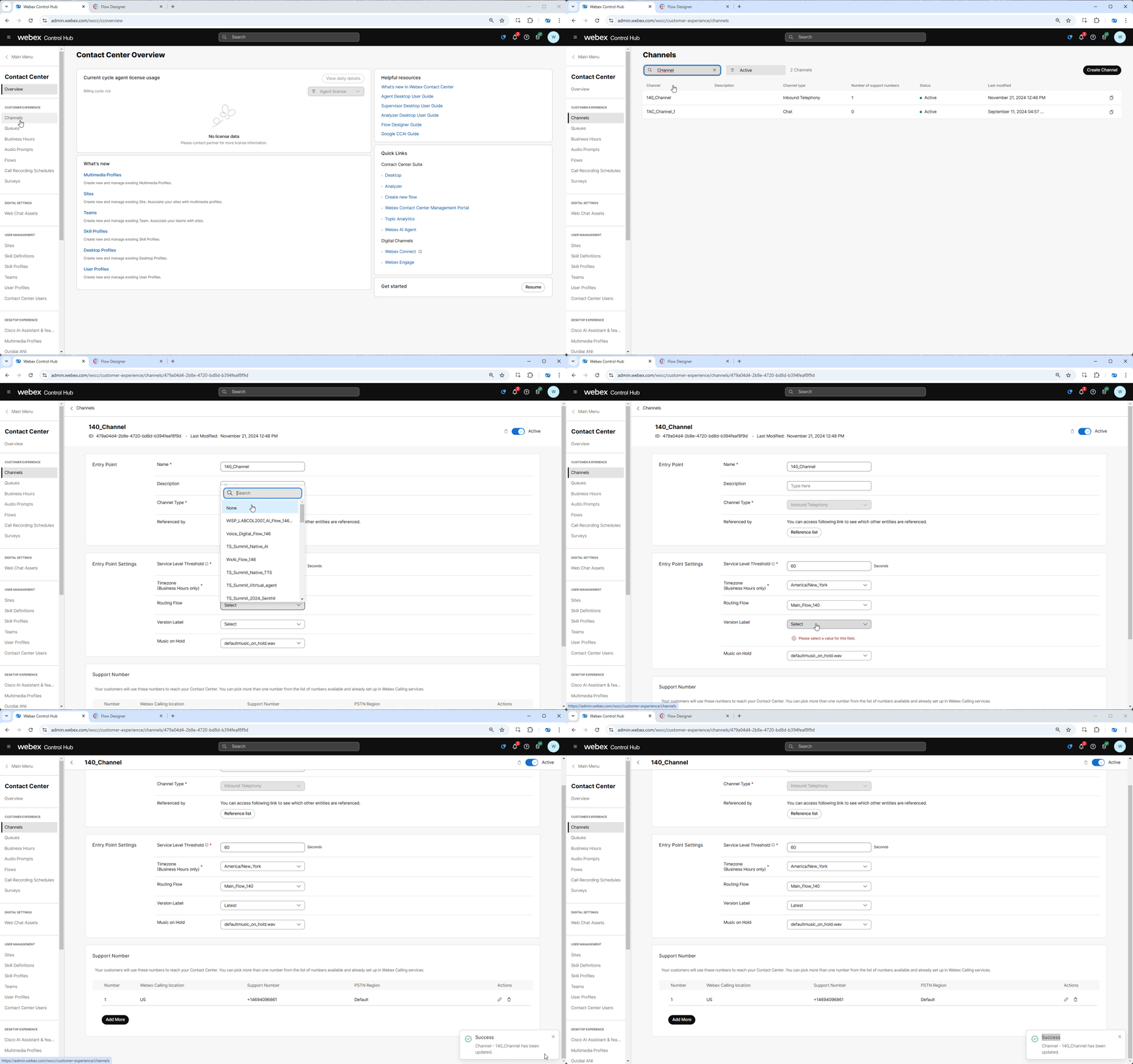
- Switch to Control Hub to assign the Flow to your Channel (Entry Point). Go to Channels, search for your channel Your_Attendee_ID_Channel
- Click on Your_Attendee_ID_Channel
-
In Entry Point settings section change the following, then click Save button:
-
Routing flow: Main_Flow_Your_Attendee_ID
-
Music on hold: defaultmusic_on_hold.wav
-
Version label: Latest
-
-
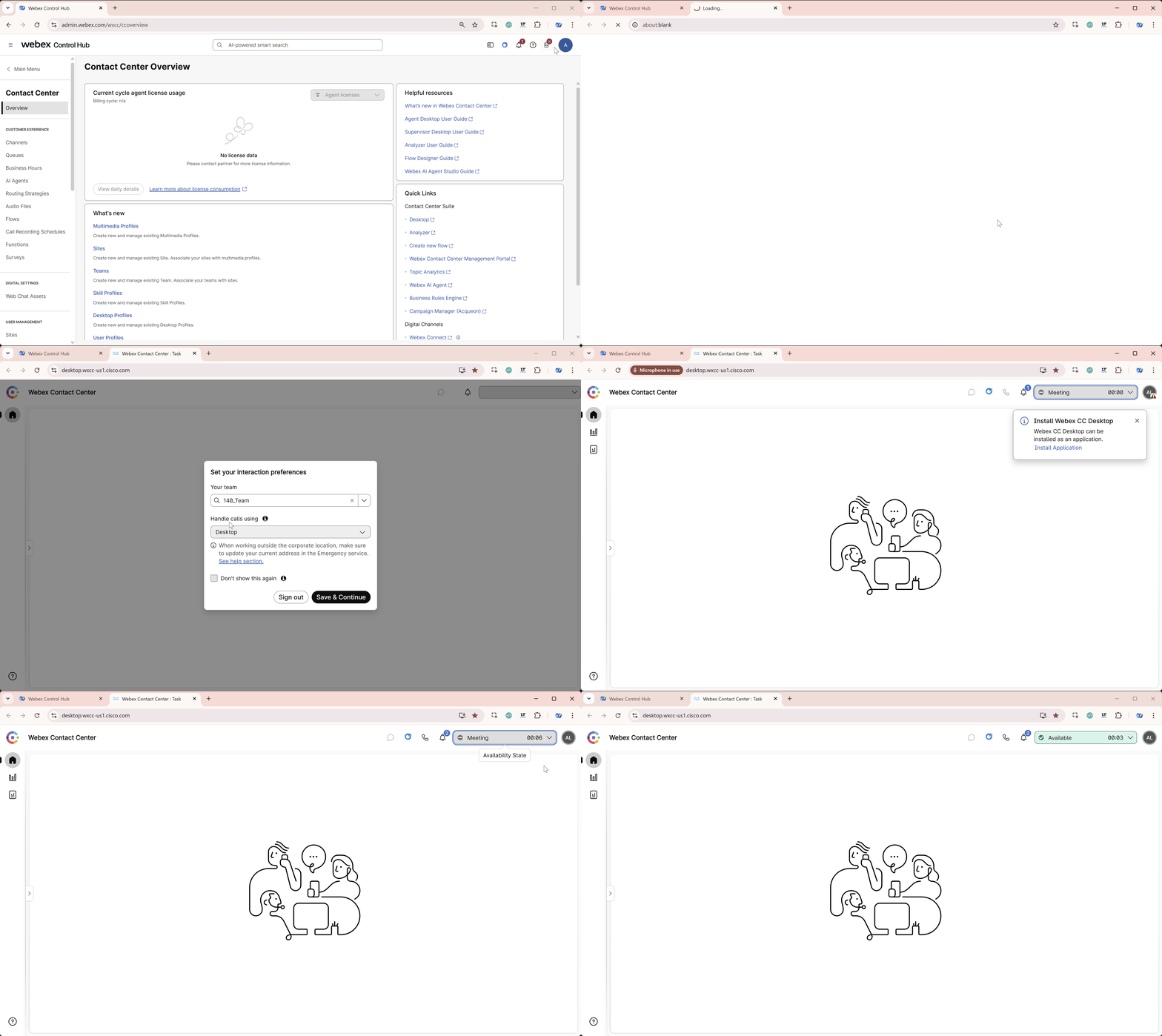
Your Agent Desktop session should still be active. If it is not, launch Desktop using the cross-launch link in Control Hub.
See how to run Agent Desktop from the Control Hub
-
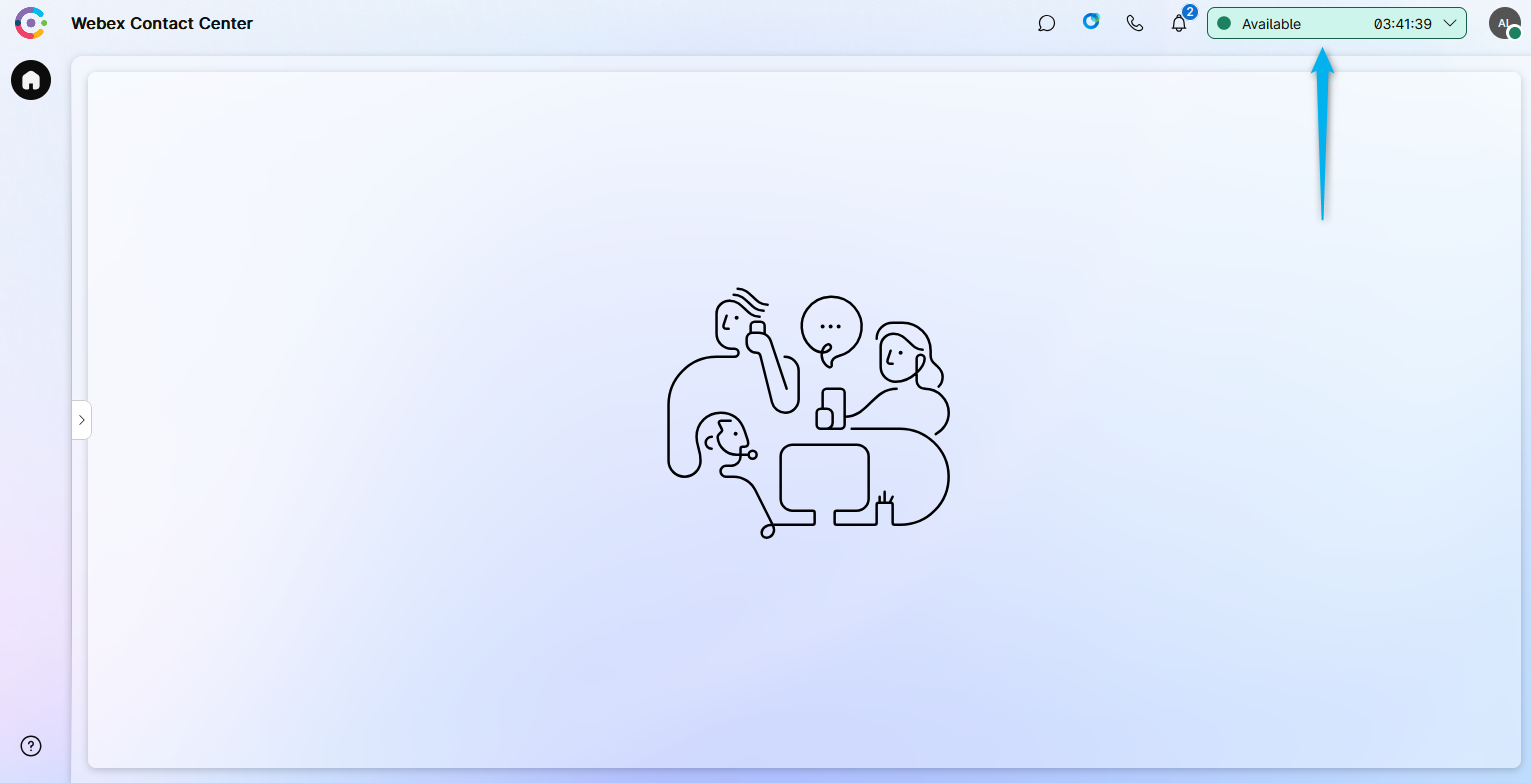
Make your agent Available and you're ready to make a call.
-
Place the test call to the number that is associated with your Your_Attendee_ID_Channel.
-
Answer the call on Agent Desktop and use the provided script to simulate an agent/customer conversation (minimum 30 seconds).
Call Drop Summary Script
Agent: Good morning, thank you for calling Airway Express. My name is Michelle. How can I assist you today?
You: Hi Michelle, I'm having an issue trying to make an adjustment to a flight I have with you. I booked a flight from Amsterdam to London, but now I need to add a leg to go from London to New York a couple of days later. I just can't seem to do it through the website.
Agent: I'm sorry to hear you're experiencing issues with our app. I can definitely help you with that. Could I have your flight confirmation number to start with, please?
You: <..Silence..>
Agent: Hello, hello, hello -
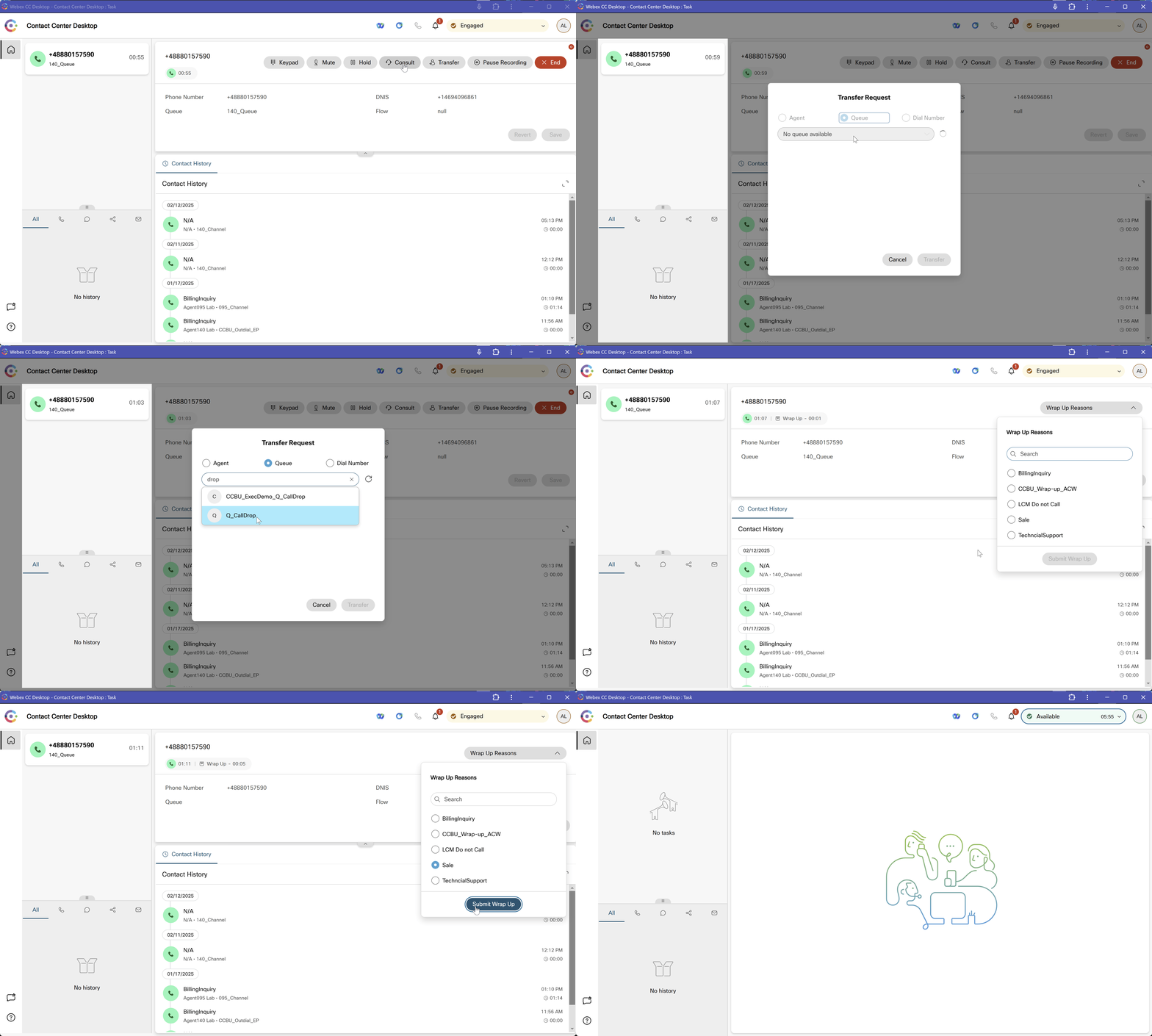
From the Agent Call Controls, transfer the call to transfer call to the Queue CCBU_ExecDemo_Q_CallDrop. Click the “Queue” radio button to search for this Queue.
-
Wait for the call to timeout and disconnect. This simulates an accidental call drop.
Note
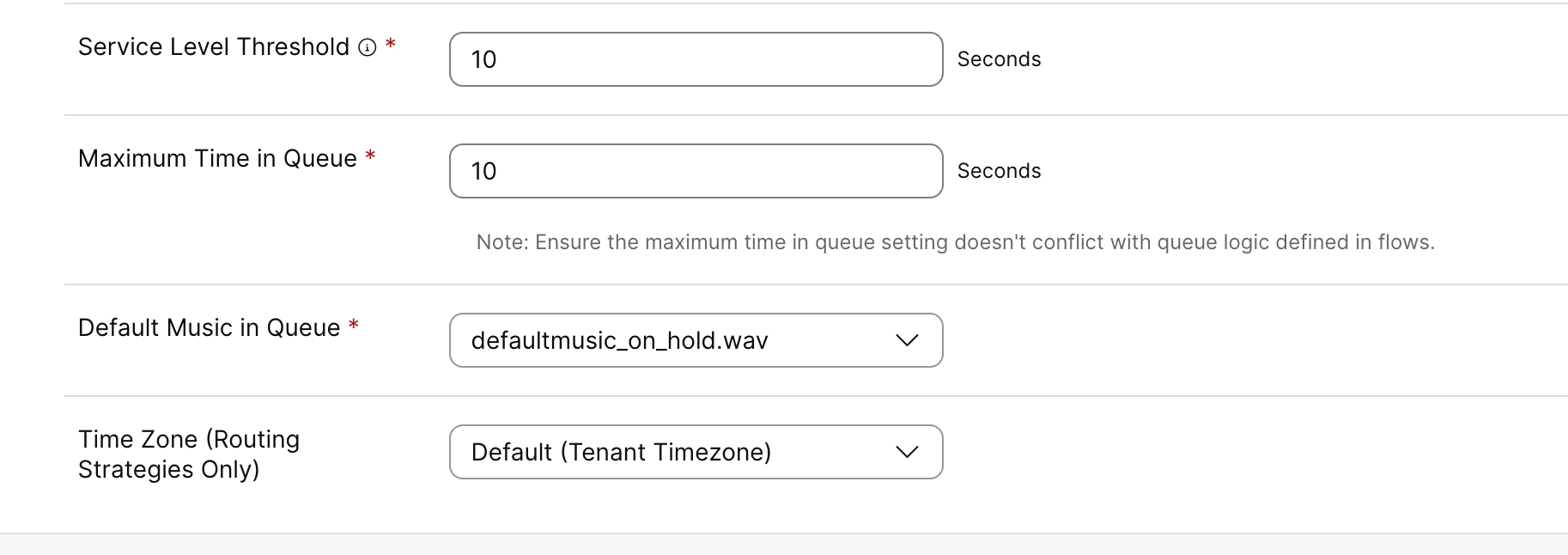
Since the call drop must be system initiated, the queue CCBU_ExecDemo_Q_CallDrop has been pre-configured with a maximum time in queue of 10 seconds (pictured on screenshot from Control Hub). Wait in the queue for about 10 seconds for the system to drop the call "automatically".
-
Make sure your agent session is active and your agent is in Available state.
-
Dial the support number assigned to your Your_Attendee_ID_Channel channel again. This will simulate a customer calling back after a call was dropped and trying to connect again to resolve the original issue.
-
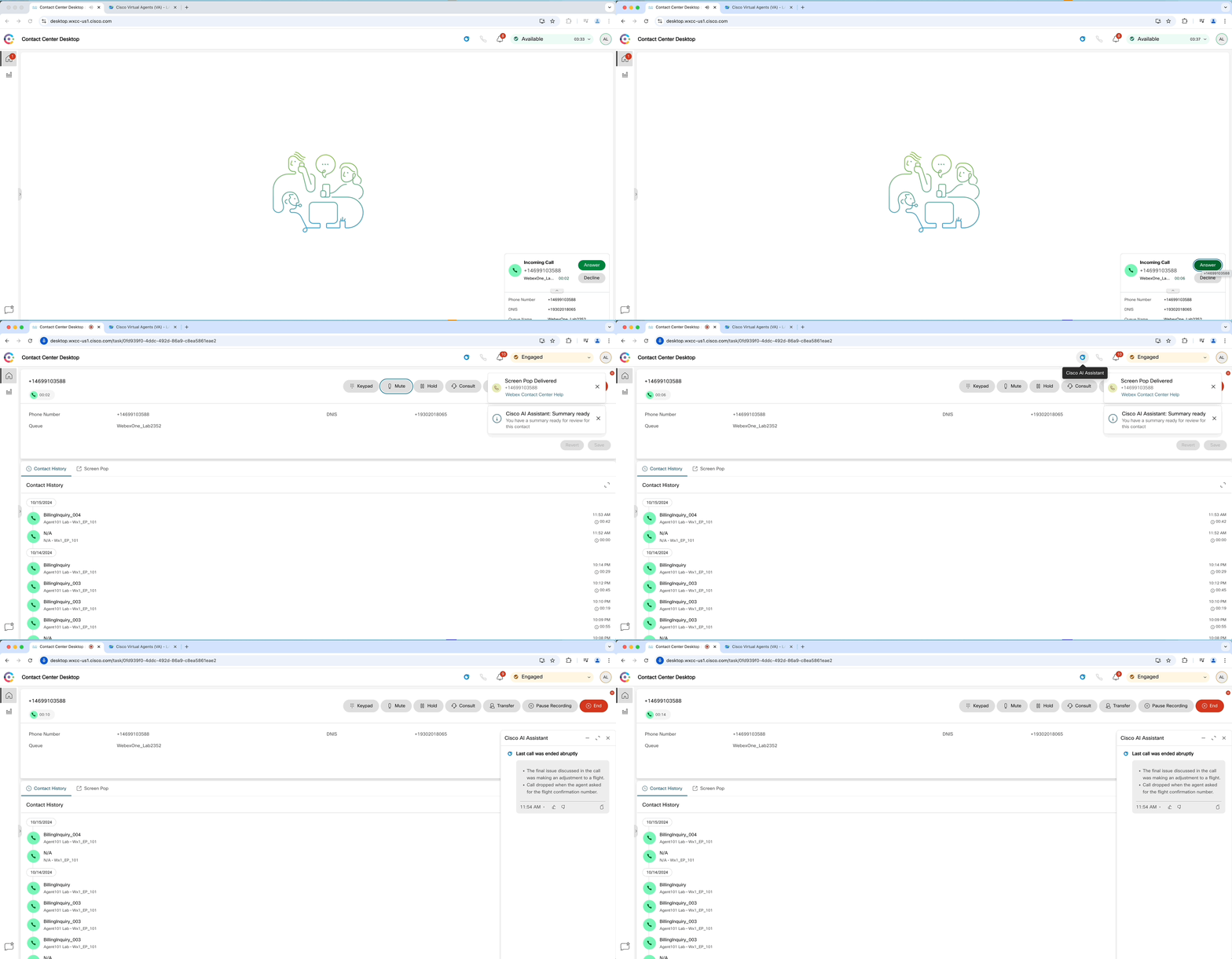
Accept the call on the Agent Desktop. The AI Assistant notifies the agent of the available call drop summary.
-
Open the AI Assistant to review the summary. This summary can be used by the agent to pick up where the previous agent left off, reducing customer frustration and need for them to repeat themselves.
Congratulations, you have officially completed the Call Drop Summary lab! 🎉🎉