Mission 3: Configure flow to track an order
🚨 Important Lab Dependency
This mission requires configuration created in the following missions:
- AI Agent Track ⮕ Scripted Agent: Mission 1 - Configure Scripted Agent to answer basic questions
- AI Agent Track ⮕ Scripted Agent: Mission 2 - Integrate Scripted Agent with Voice Flow
If these missions were not completed, some steps in current mission will not function correctly.
Mission Details
- Your mission is to configure intents, entities, and responses to check the status of an existing order. In the next Mission 4, you will configure Fulfillment for this order tracking flow.
Build
Task 1. Test the Order tracking flow
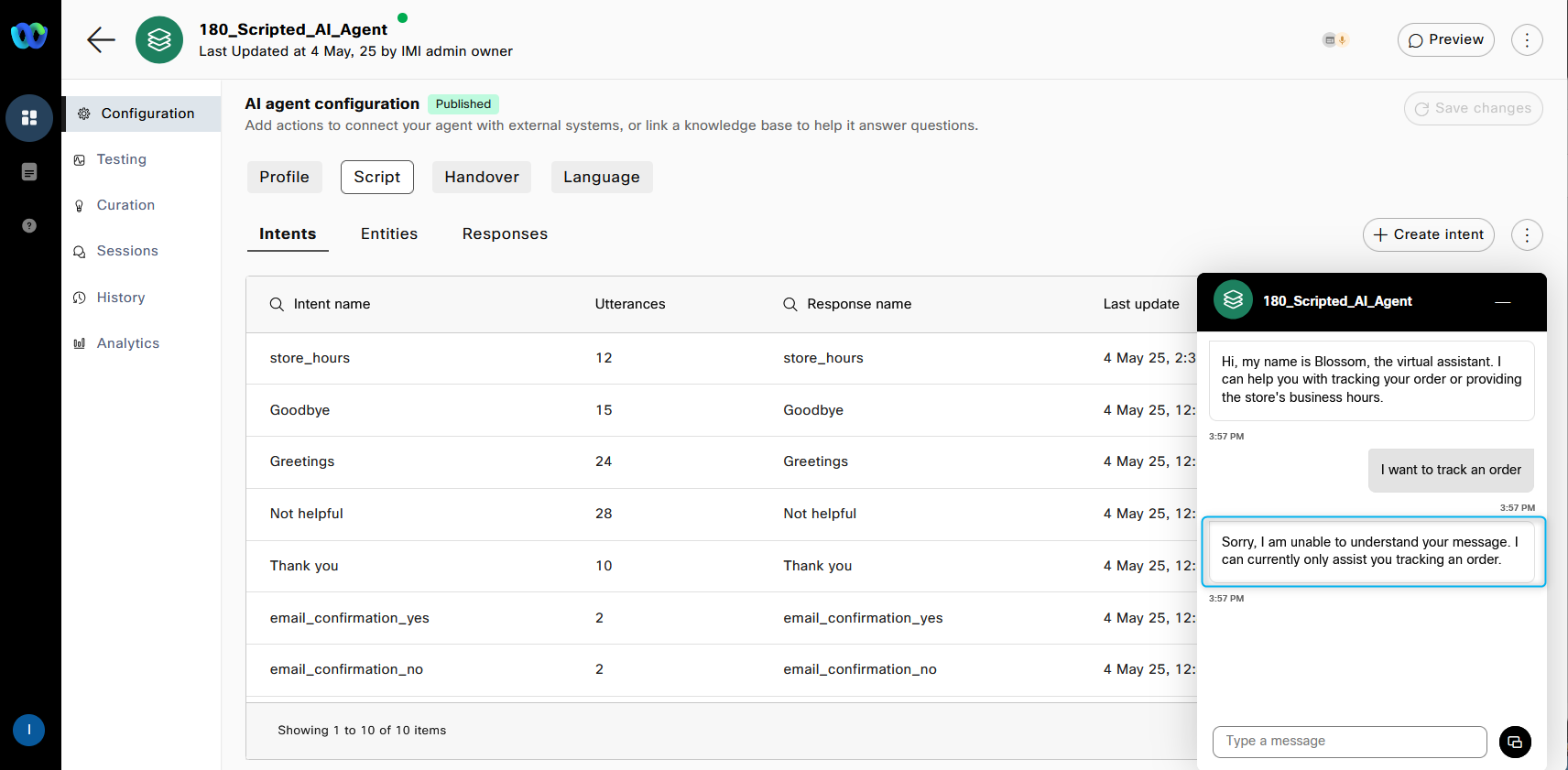
- While in AI Agent Studio portal, access your Your_Attendee_ID_Scripted_AI_Agent and click on the Preview button on the top right side to test the bot. Try the bot flow by typing I want to track my order. You will see that the Scripted AI agent is not yet configured to assist with this task.
Task 2. Configure intents, entities, and responses
-
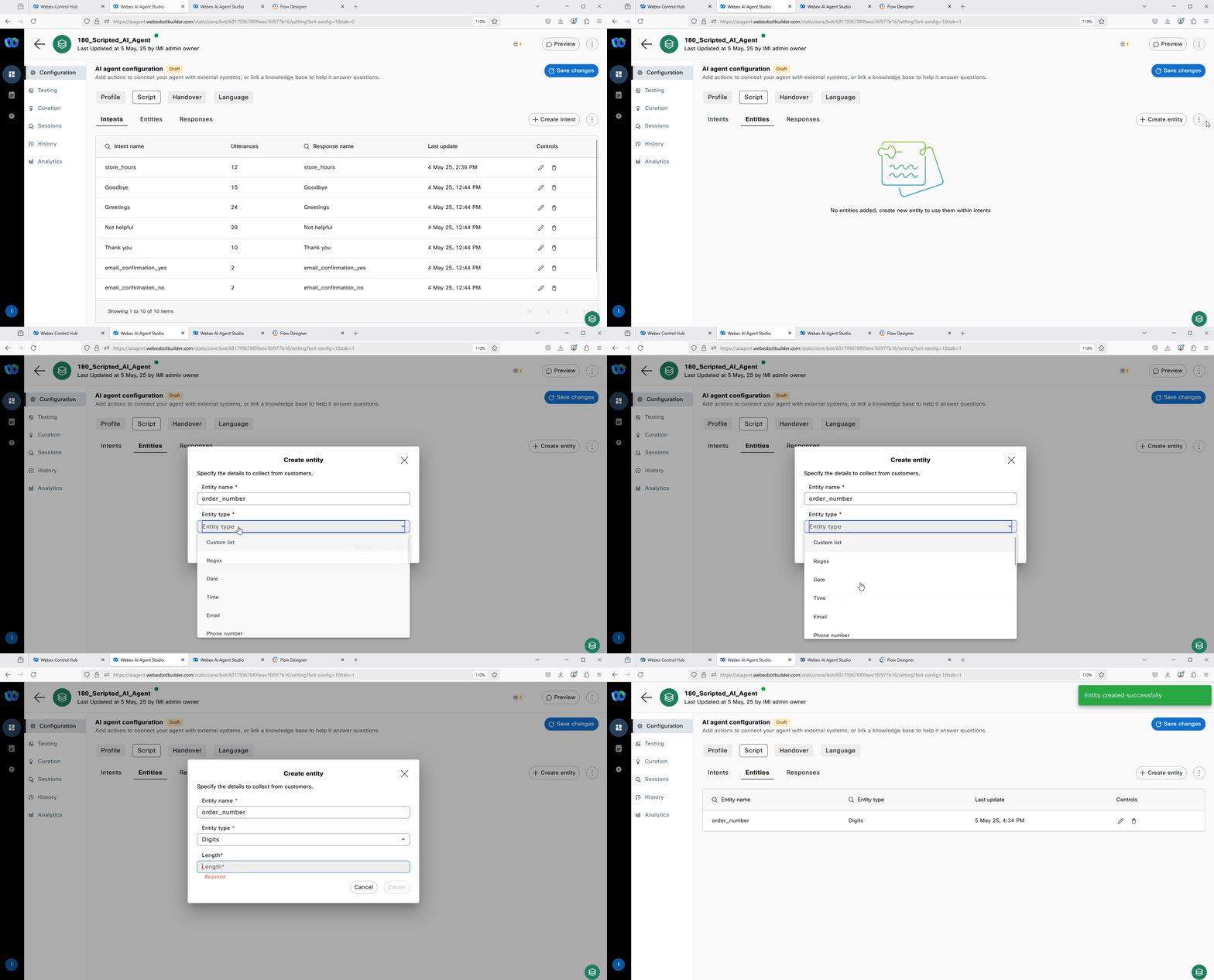
While on the Script configuration page, switch to Entities tab and click on the Create entity option. Provide the name as order_number. Entity type select as Digits. Provide Length as 2. Then click Create.
-
While on the Script configuration page, switch to Intents tab and click on the Create Intent button located in the top right corner.
-
Add a new intent by providing the intent name as track_order and include the following two utterances:
I want to track my order.
What is my order status?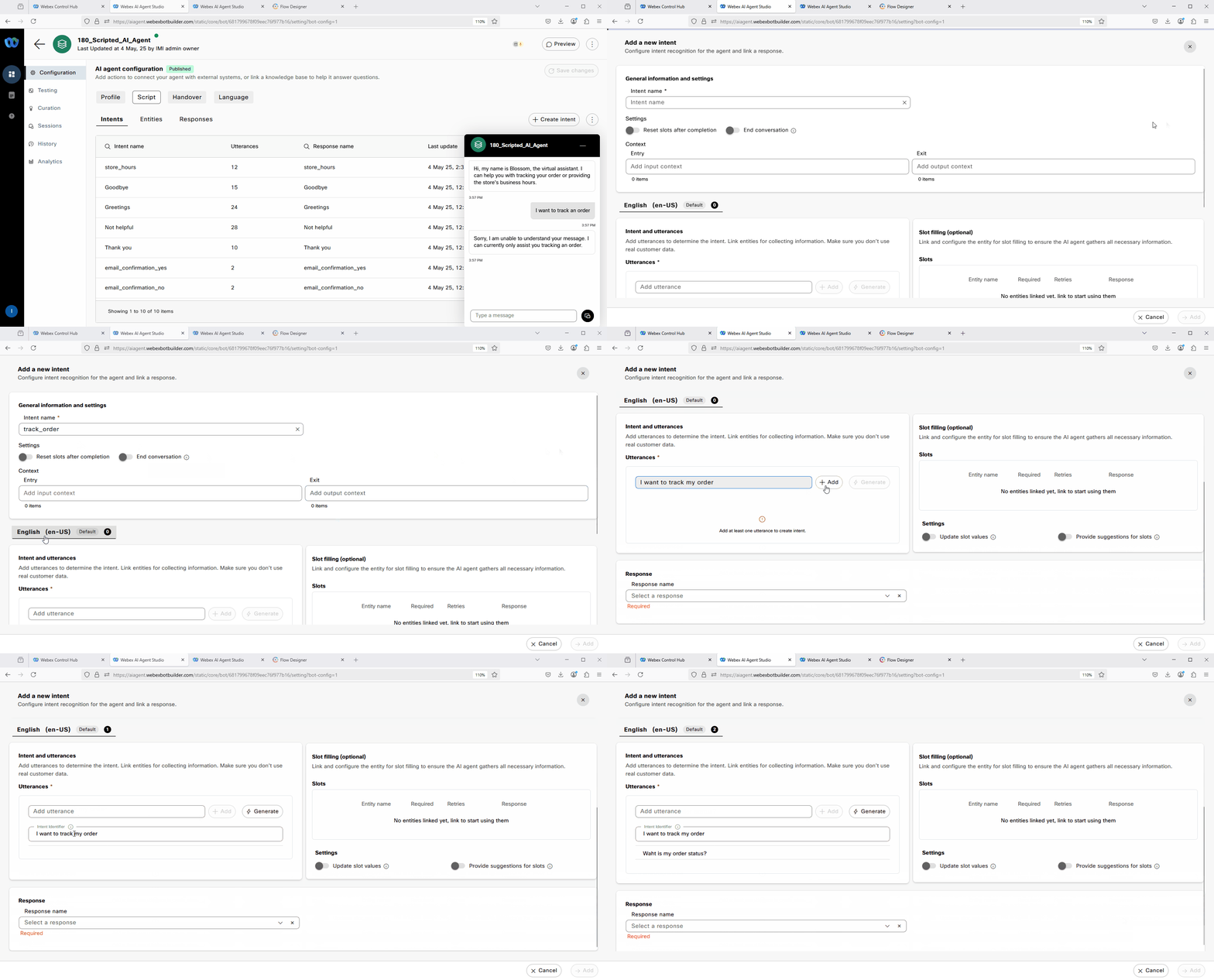
-
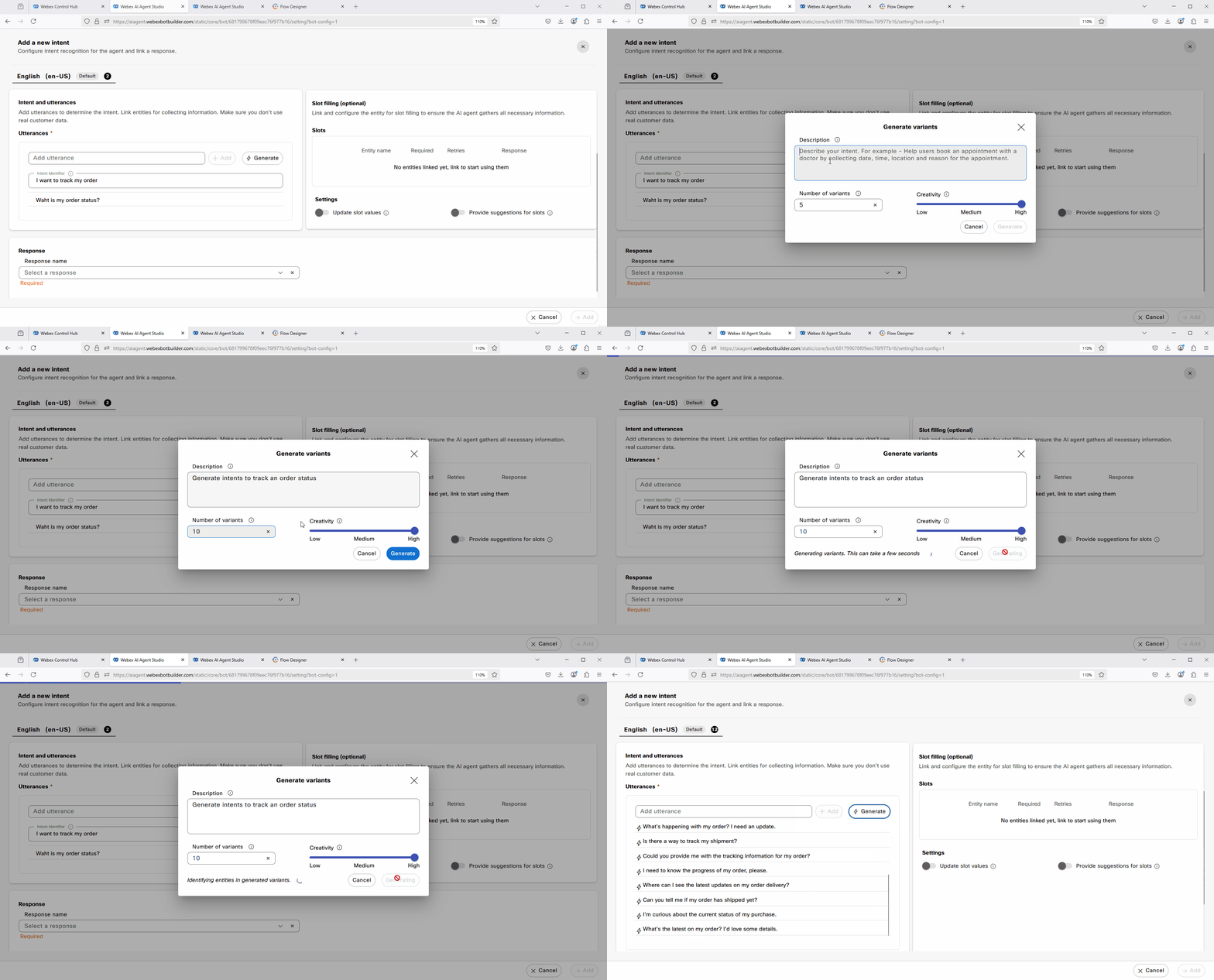
Click on the Generate button to utilize Generative AI for creating additional training phrases.
-
Enter a description such as Generate intents to track an order status.. Set the Number of Variants to 10, which will determine the number of new phrases to be generated.
-
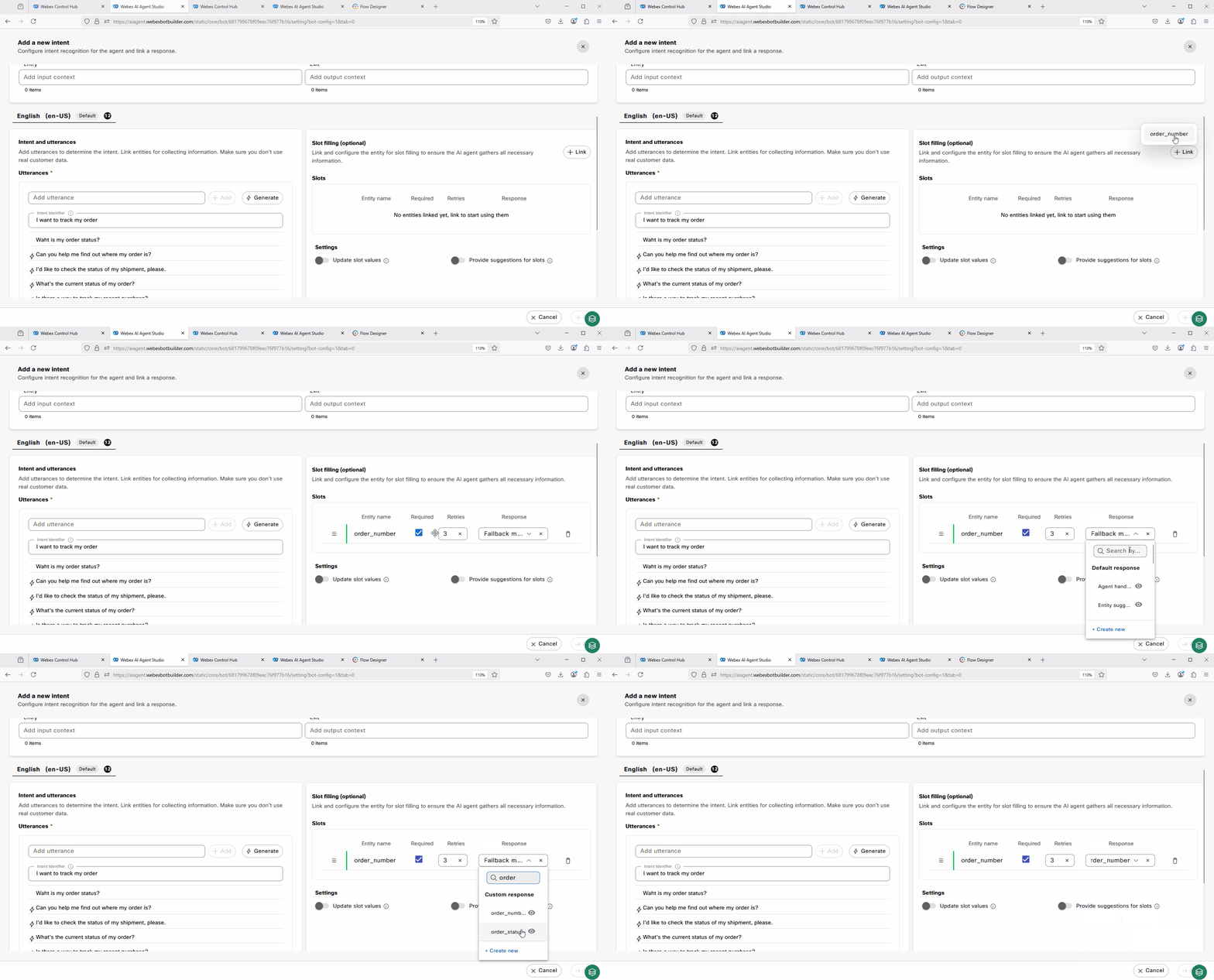
Click on + Link and add order_number as an entity. Make it as Required. Click on the Response search and select order_number response.
-
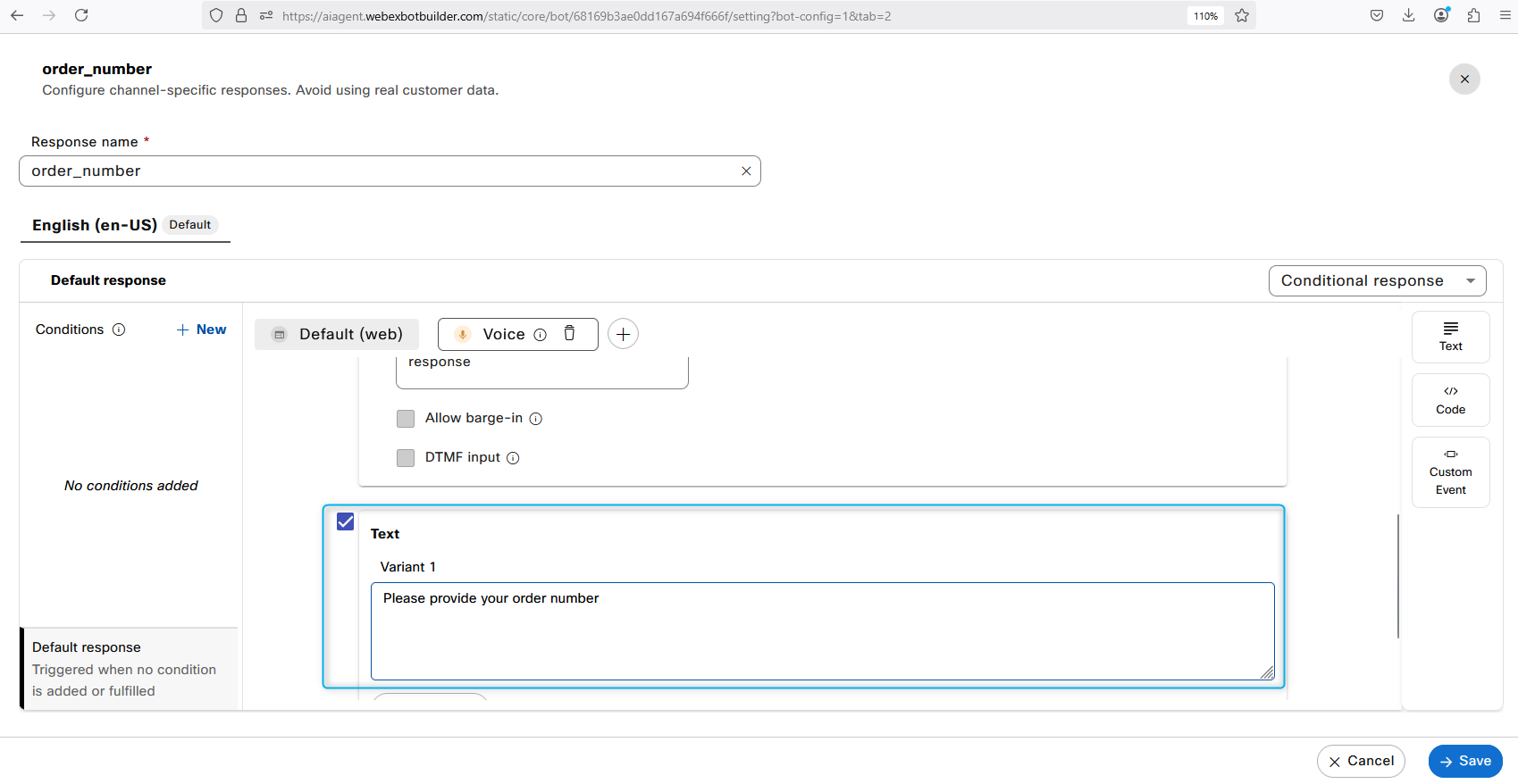
You can review it later, but for your information, the order_number response was preconfigured for you for this lab. In this response, the AI agent simply asks for the order number. Refer to the picture below. This is an interim response needed to fill the entity.
-
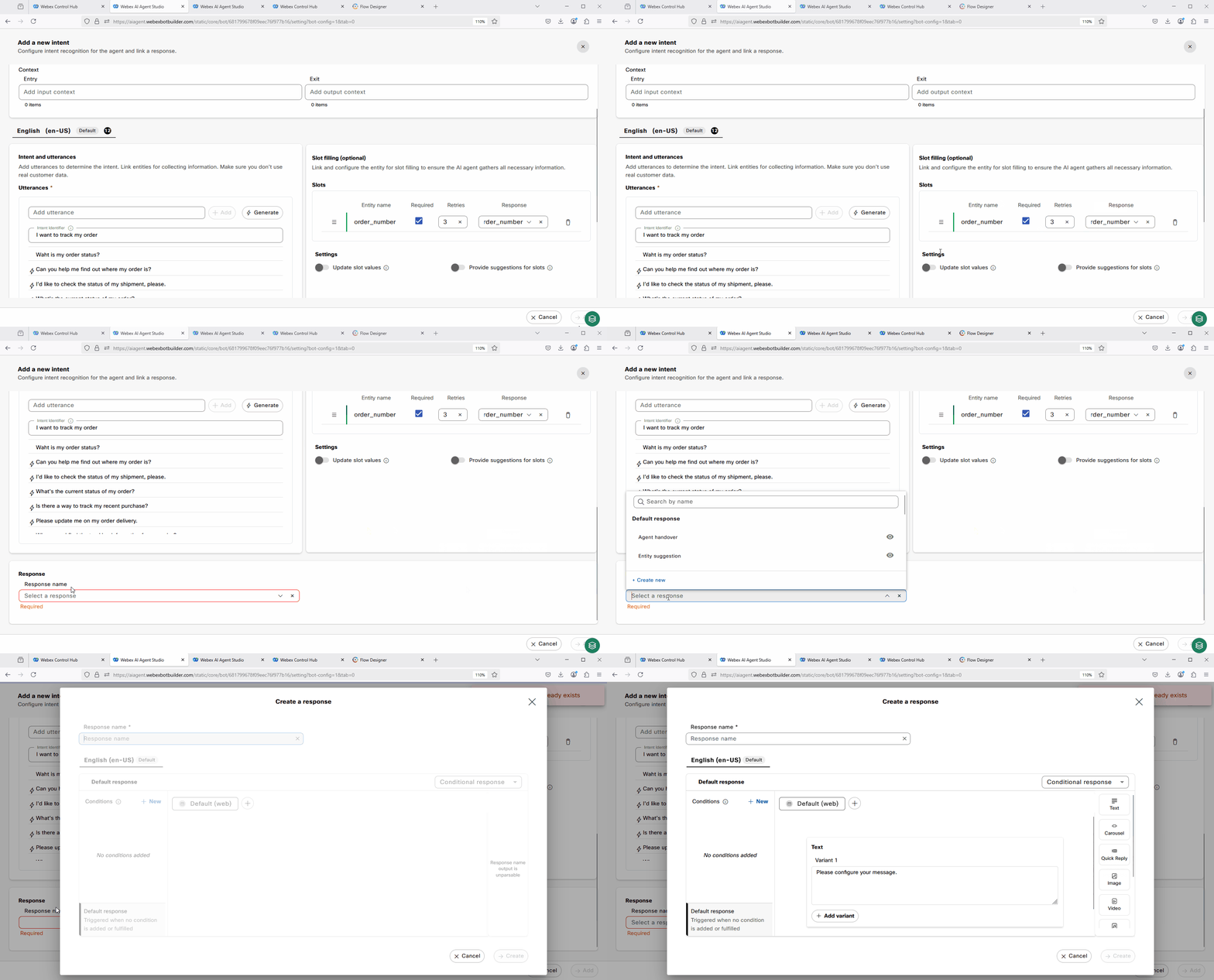
Scroll down to Response and click Select a response drop down menu and click on Create new..
-
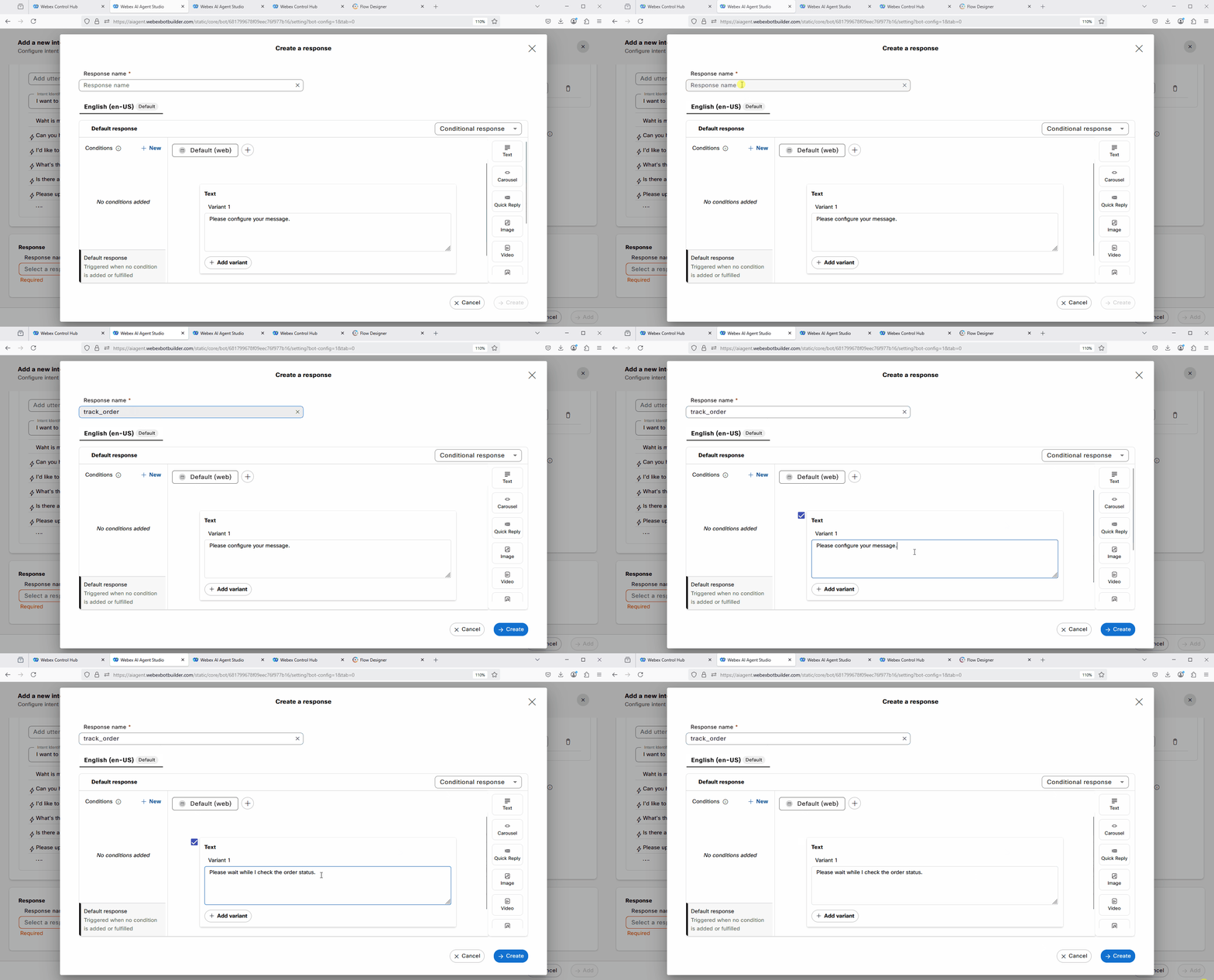
Name the response as track_order. Update text of Variant 1 to Please wait while I check the order status.
-
Click on "+" next to Default (web) and select Voice..
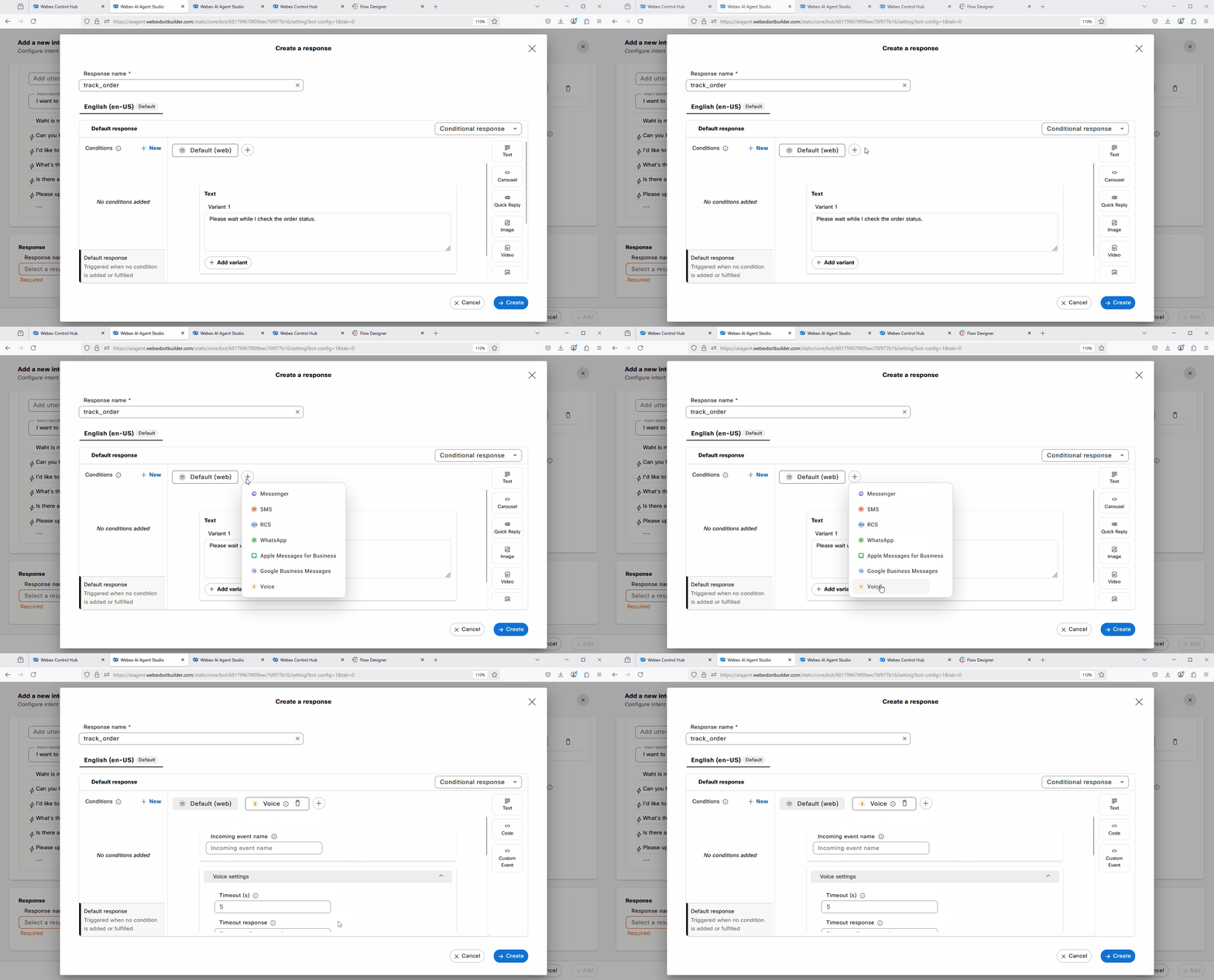
-
Configure Voice Channel with the same variants and click on Create.
Please wait while I check the order status.
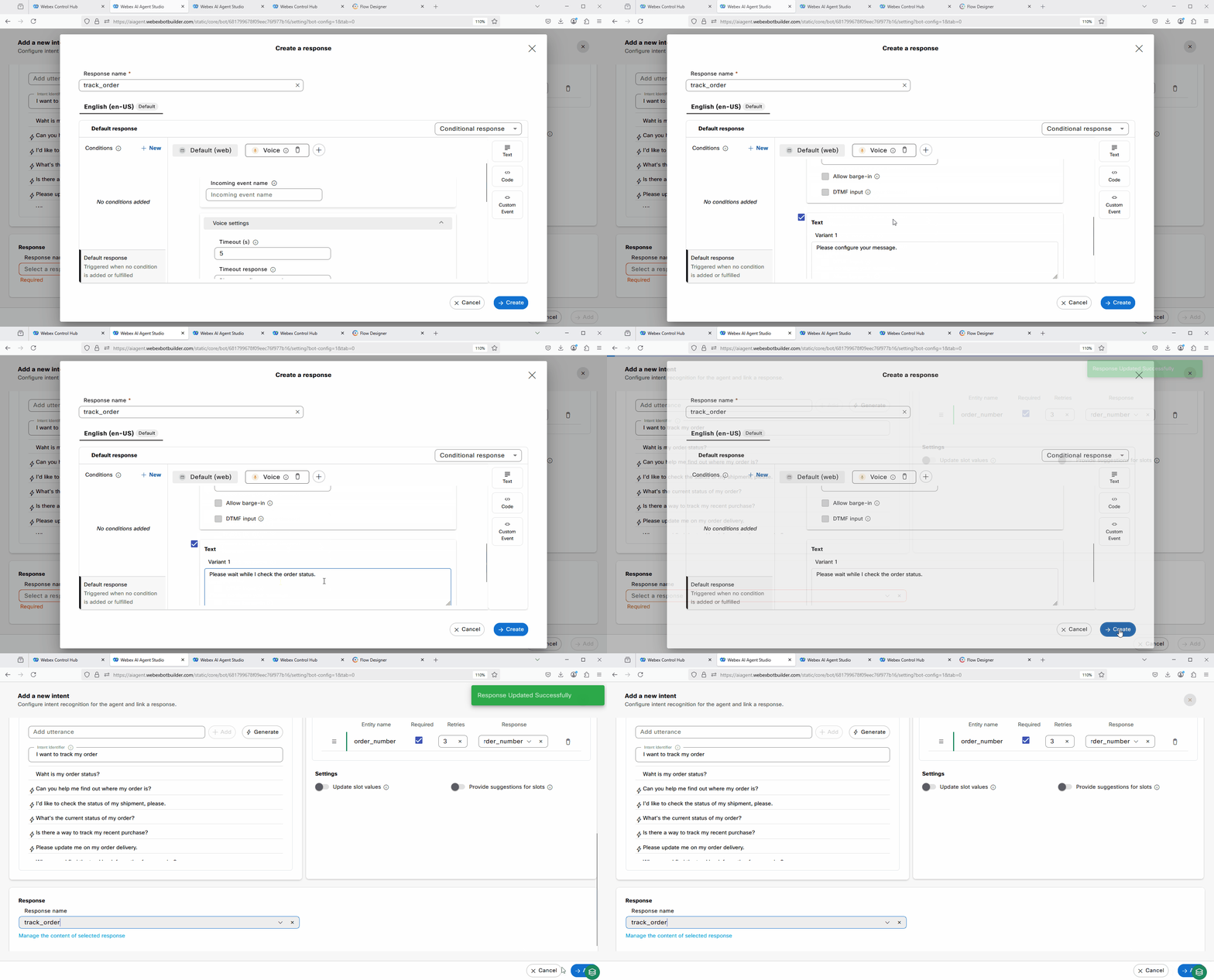
-
Now after we added the response to our intent we can complete the intent configuration. Click on Add on the right bottom corner. Save and Publish the Scripted AI Agent. Enter publishing text in the popup comment window, then click Publish
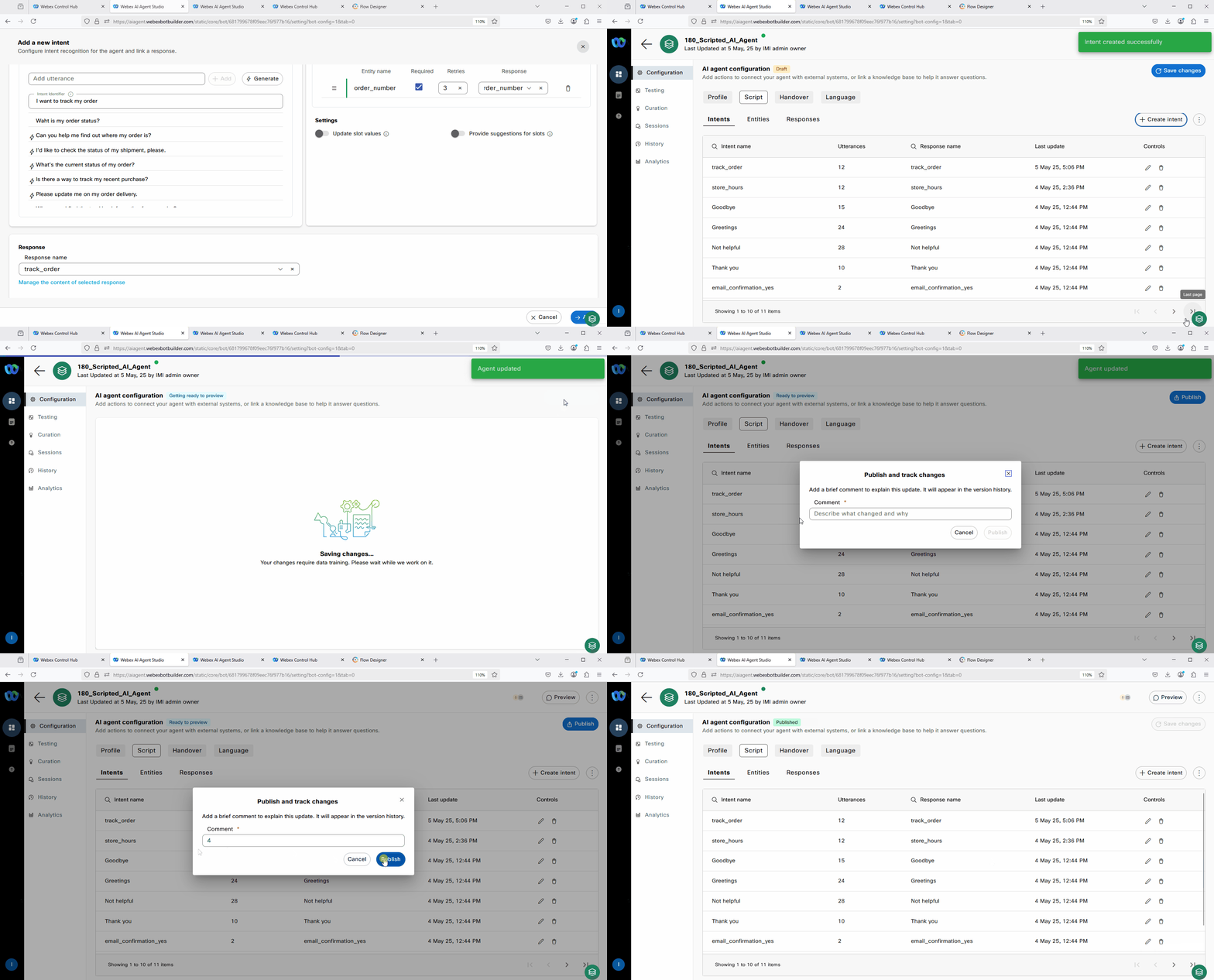
-
Click on the Preview button on the top right side to test the bot. Try the bot flow by typing I would like to track my order
and provide an order number that you created earlier. The AI agent will not respond with actual order status but it will provide the interim message.
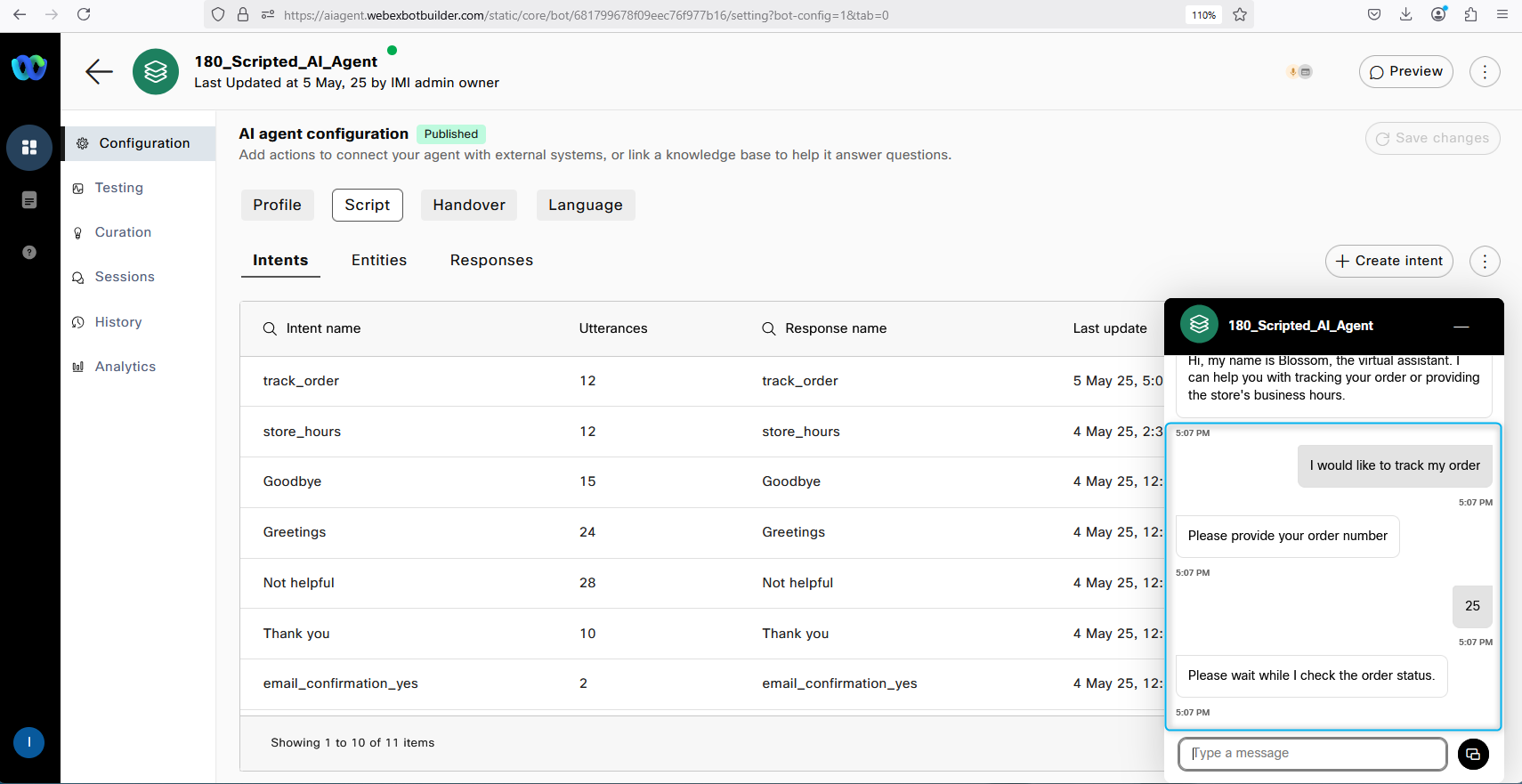
Congratulations, you have officially completed this mission! 🎉🎉